Upsample albums to new PCM or DSD files with their tags and cover art. Play the files through compatible software or a music server.
Why choose Offline.
Process music in advance so your playback system does not have to do that work while you listen.
Play your upsampled music on multiple compatible setups, including portable audio players.
Play high-rate DSD even if your computer is not fast enough to process it in real time.
What to plan for.
Allow time to process albums before listening.
Upsampled copies need storage alongside your original files.
Changing processing settings means creating new copies from the source.
Offline / 01
From your files to your DAC.
Your tracksOriginal music files
PGGBOffline processing
Prepared filesNew PCM or DSD copies
Player → DACPlay at the chosen rate
MusicListen in your system
Keep processing and playback separate. Prepare an album once, then play the new files whenever you want. Get started ↗
Offline / 02
What you need.
A computer for processingSee suggested Mac and Windows requirements.
These offline-processing guidelines use the default Precision Optimized Upsampling Engine with Precision optimized selected. Memory use does not grow with track length, and paging space is rarely needed.
Operating system
Windows or Mac.
64-bit Windows 10 or 11, or macOS 12 Monterey or later. Apple Silicon and Intel Macs are supported. Intel and AMD processors must support AVX2.
Processor and memory
Recommended configurations.
A comfortable all-round system
8 cores · 32 GB RAM.
A modern processor and a fast internal SSD are a comfortable starting point for a large library. Smaller systems can also work well.
This is a practical guideline, not a fixed minimum for every setting.
Offline PCM · up to 256-bit precision
16 GB RAM.
4-core processor
A starting point for PCM processing with the default engine. More cores can shorten processing time.
Once you have enough RAM, a faster processor and faster RAM usually help large PCM batches more than additional capacity.
Offline DSD · up to DSD256
16 GB RAM.
4-core processor
A starting point for DSD64, DSD128 and DSD256. Your chosen modulator also affects processing time.
Offline DSD · DSD512
24 GB RAM.
At least an 8-core processor
More cores can help with demanding settings and larger libraries. The selected modulator affects processing speed.
Offline DSD · DSD1024 and DSD2048
32–64 GB RAM.
More cores recommended
The highest DSD rates benefit from additional cores and memory, especially when you want faster processing.
Music files and storageEstimate the space for your processed albums.
Start with PCM or DSD music files, such as WAV, FLAC, AIFF, WavPack or DSF. PGGB saves new files with their metadata and artwork; a streaming subscription alone does not provide files for Offline processing.
Choose the output you plan to use and estimate the space for the new files.
Storage for upsampled files
Stereo files in the 44.1 kHz rate family. The estimate uses the file’s stored bit depth, not PGGB’s internal processing precision.
Compression assumes a 30% saving; actual file sizes vary with the music and output settings. Leave room for your originals, temporary processing files and future albums.
GiB and TiB are binary storage units. Drive labels usually use decimal GB and TB.
The right settings depend on the DAC, its input and the player you use.
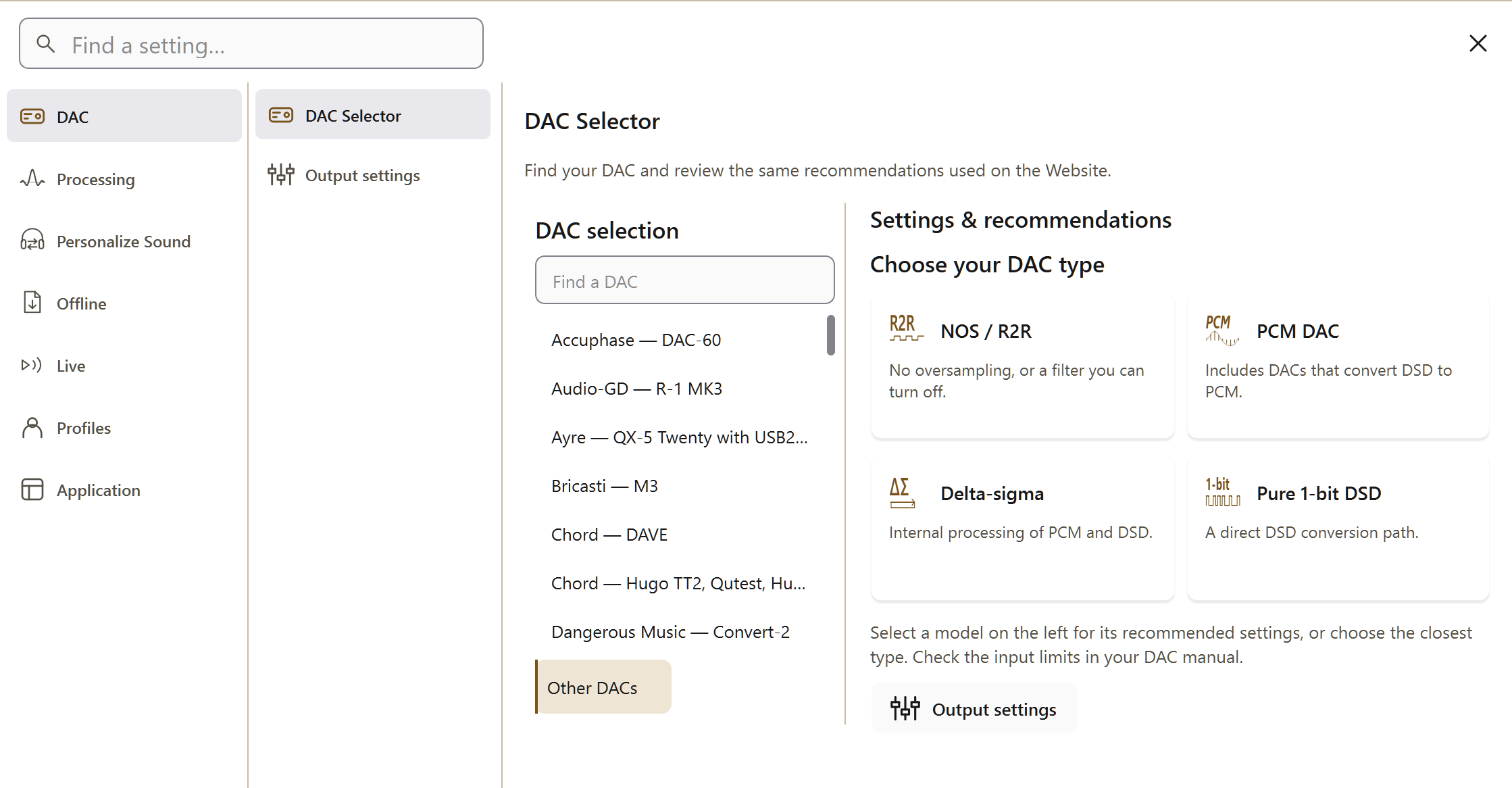
Choose Offline in the header. Open Settings → DAC → DAC Selector and choose a matching preset or Other DACs. In Output settings, select PCM or DSD and a supported rate.
For PCM, choose output bit depth, processing precision and noise shaping. For DSD, choose the output rate and modulator. Internal processing precision is separate from the bit depth sent to your DAC.
Get started combines the recommendations for your DAC with the file formats your player supports.
Settings → DAC → Output settings contains the format and rate settings. Settings → Processing contains the precision settings used to process your music.
Offline / 04
Process one familiar album.
Add your album. In Process, choose Add Folder and select the source album.
Choose the destination. Set a separate Output Folder so the new files are easy to find.
Choose the file format. PCM can use WAV, RF64, FLAC or WavPack; DSD can use DSF or WavPack. Availability depends on the selected rate and your player.
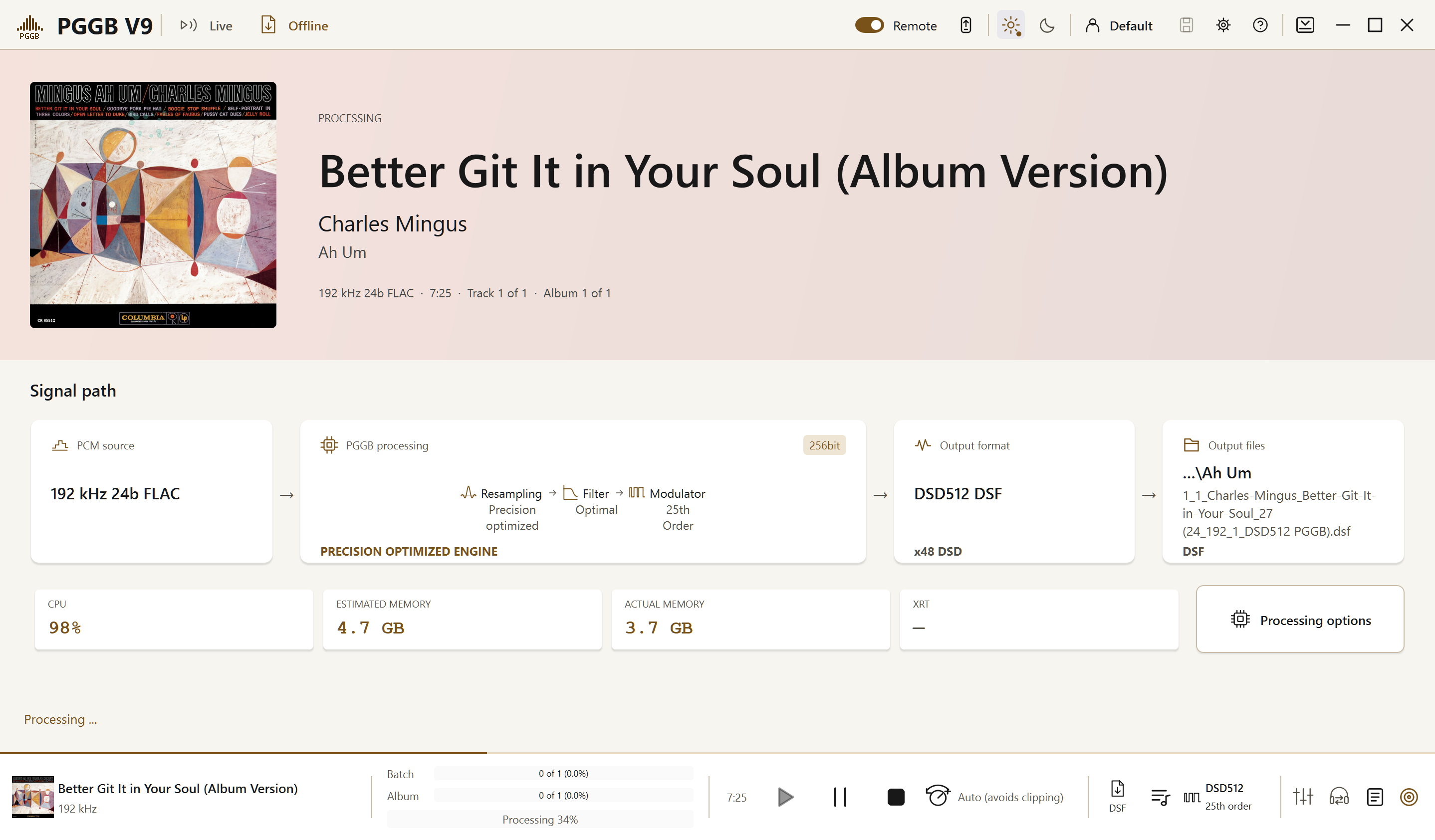
Create the new files. Use Create New, check the output settings, then select Start. The progress display shows the current job.
Process contains the source albums, output destination and processing progress.
Offline / 05
Optional EQ, crossfeed and filters.
EQFine-tune the tonal balance
Adjust bass, midrange or any other frequency band.
Equalization changes the balance of bass, midrange and treble. You can add warmth to lean-sounding headphones, reduce excessive brightness or tame a bass peak caused by your speakers and room.
Make a broad, gentle adjustment or target a narrow frequency range without turning down the whole track. PGGB supports parametric and convolution EQ in Offline and Live, including correction profiles you already use.
If a familiar voice sounds thin or bass overwhelms the music, PGGB-EQ lets you adjust the balance while keeping the sound clear and natural.
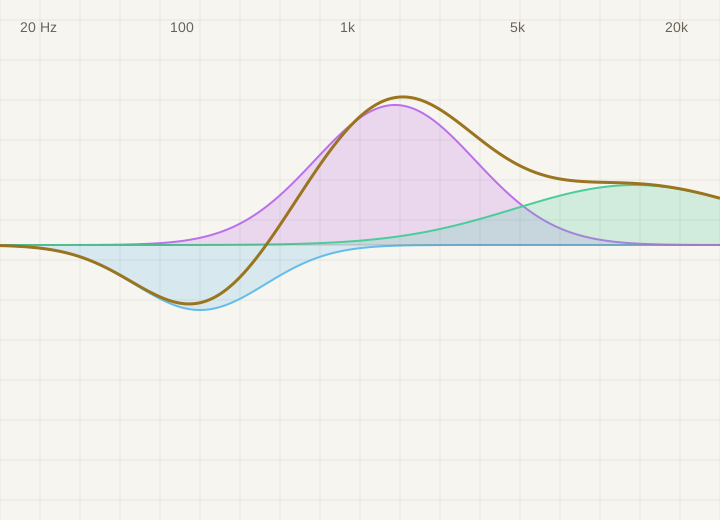
Parametric EQ lets you choose which frequency to adjust, how much to raise or lower it, and how broad the adjustment should be. Use it for small changes to taste or a headphone correction profile.
Convolution EQ.
Convolution EQ uses a prepared filter that can contain multiple adjustments. Supply a filter made for your headphones or measured for your speakers and room, and PGGB applies it during processing.
EQ can improve tonal balance, but a filter cannot fix every acoustic problem. Speaker placement, the room and the recording still affect the sound.
Your chosen EQ is applied when PGGB creates the files.
Room and CrossfeedAdjust headphone crossfeed with PGGB-ARC
Crossfeed lets each ear hear a little of both channels.
With speakers, sound from each speaker reaches both ears. Headphones usually keep the left and right channels separate. Crossfeed mixes a small, delayed and filtered amount of the opposite channel into each ear.
PGGB-ARC models some of this interaction, including the time sound takes to travel around your head and how it changes on the way. It can make the channels feel more connected while preserving stereo space.
In an older stereo recording, the singer may be entirely in one ear and the instruments in the other. Crossfeed can soften that separation and make the performance sound more cohesive.
A small amount softens hard left/right separation. Increasing it sends more of the opposite channel to each ear. The aim is comfortable stereo listening, rather than a mono blend.
Personal head measurements.
Your head and shoulder dimensions affect how sound reaches your ears. ARC can use personal measurements to refine its crossfeed model, and its virtual speaker angle changes the listening perspective.
Optional Room reflections.
Optional Room reflections add the early echoes and fading reverberation associated with listening in a room. This is separate from crossfeed and is available for Offline processing. Crossfeed itself works in both Offline and Live.
The effect varies with the recording, headphones and listener. Crossfeed is another option for stereo listening; it does not make headphones sound identical to speakers in a room.
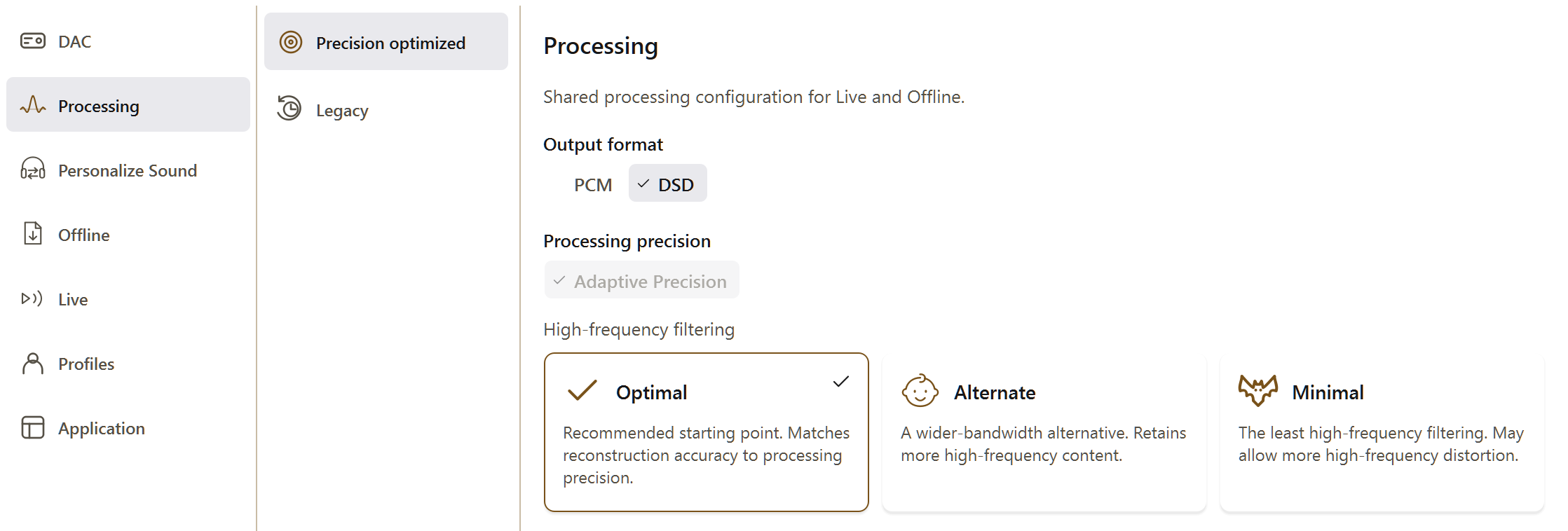
OptimalStart hereAlternateWider bandwidthMinimalLeast filteringFilter High FrequenciesChoose Optimal, Alternate or Minimal
Choose how to handle the highest frequencies.
Optimal and Alternate are choices within PGGB’s Precision Optimized Upsampling Engine. Both match reconstruction accuracy to PGGB’s internal calculation precision within the frequency range they preserve.
Alternate keeps a slightly wider frequency range before rolling off. Start with Optimal, then compare on familiar music. Minimal applies the least high-frequency filtering and may allow more high-frequency distortion. The choice depends on your system and listening preferences.
The default and recommended starting point. Leave it selected for your first listen.
Alternate.
The wider-bandwidth alternative. It retains more high-frequency content; a wider bandwidth does not automatically mean a better listening result.
Minimal.
The least high-frequency filtering. It may allow more high-frequency distortion.
Leave Precision optimized selected to use these choices. This filtering reduces high-frequency distortion after upsampling and is separate from EQ correction filters.
Add the PGGB output folder to your library and select those files for playback. Use a supported output device and disable further sample-rate conversion in the player.
Compare with familiar music.
Check that the player or DAC reports the intended rate. Match the listening level when comparing with the original, and allow time to decide which settings you prefer.
The setup walkthrough includes player instructions for Roon, HQPlayer, JRiver, foobar2000, Audirvāna and VeraVox, plus guidance for other players.