PGGB / Roon guide
Keep your music in Roon, play through PGGB.
Keep choosing your music in Roon. PGGB processes the audio and follows the track you are listening to.
Follow Roon brings the title, artist, album and cover art into PGGB on your desktop and in PGGB-Remote on your phone. Skip, seek, pause or stop in Roon, and PGGB follows. Normal gapless album playback continues without interruption.
This guide takes you through the audio device, Roon’s zone settings and the PGGB extension. You can use Windows or Mac, with one PGGB computer per home.
Roon / 01
Send Roon’s audio to PGGB.
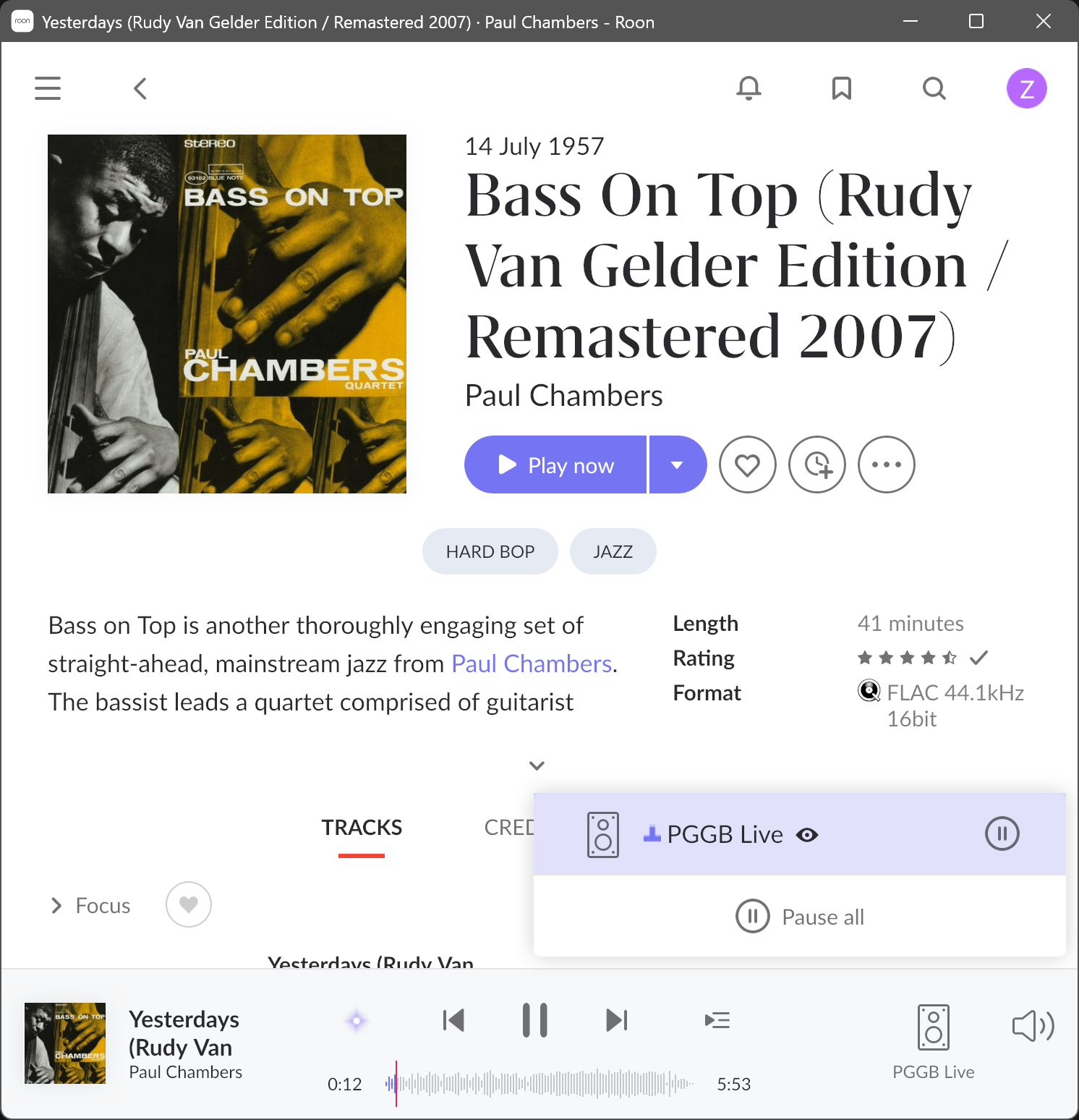
Keep PGGB running on the computer that receives Roon’s audio. The PGGB Bridge takes that audio into PGGB; choose your DAC or network endpoint as the output in PGGB.
- In PGGB-Live, open Settings → Live → Source and queue → Device Input.
- In Roon, open Settings → Audio and find the bridge on the PGGB computer.
- Enable the device if needed, then select its zone for playback.
| Computer | Roon audio device |
|---|---|
| Windows | PGGB Live, under ASIO |
| Mac | PGGB Bridge |
On Windows, include the PGGB-Live ASIO bridge component when installing PGGB. It is selected by default.
More about Device Input ↗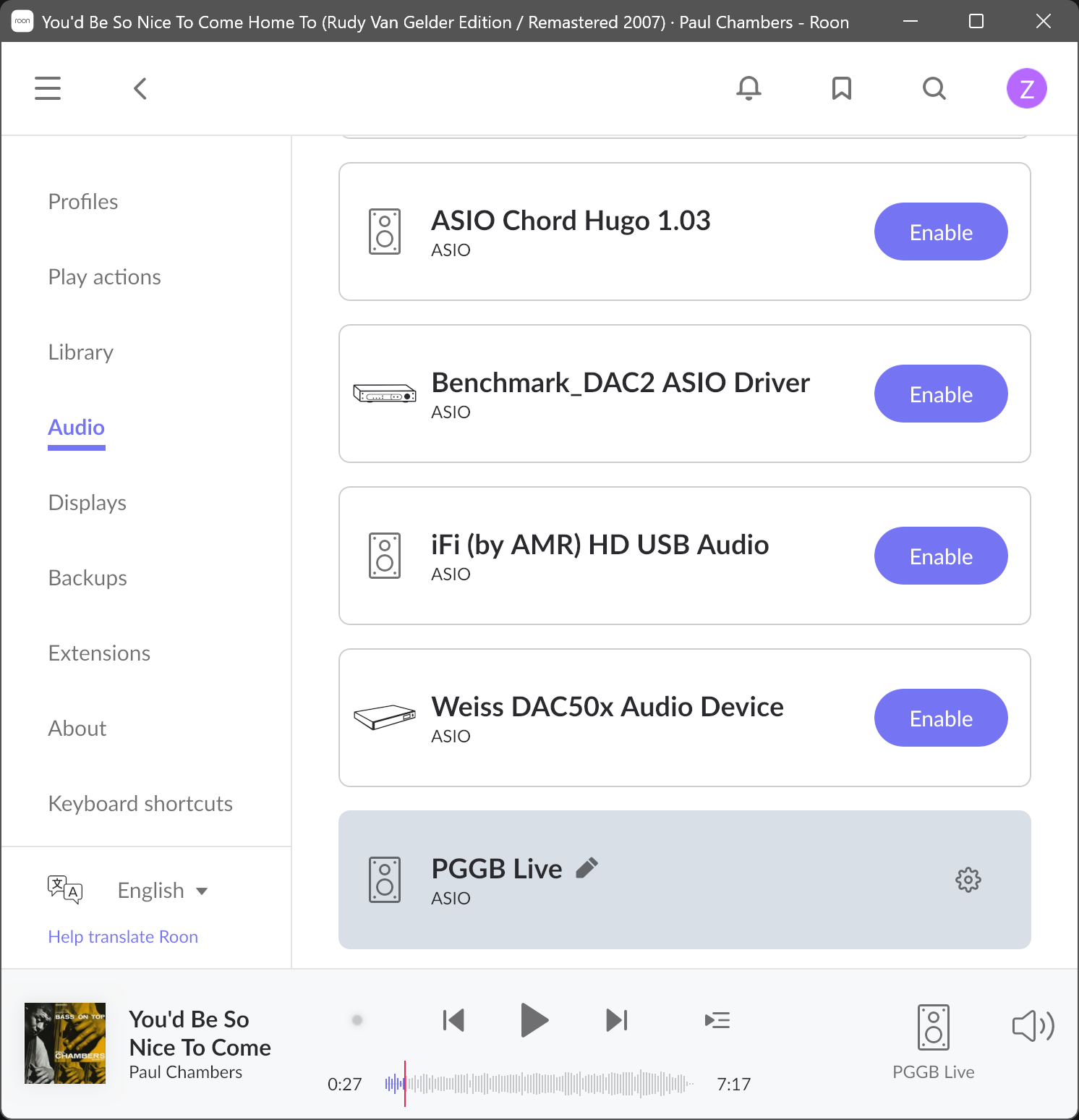
Roon / 02
Set up the Roon zone.
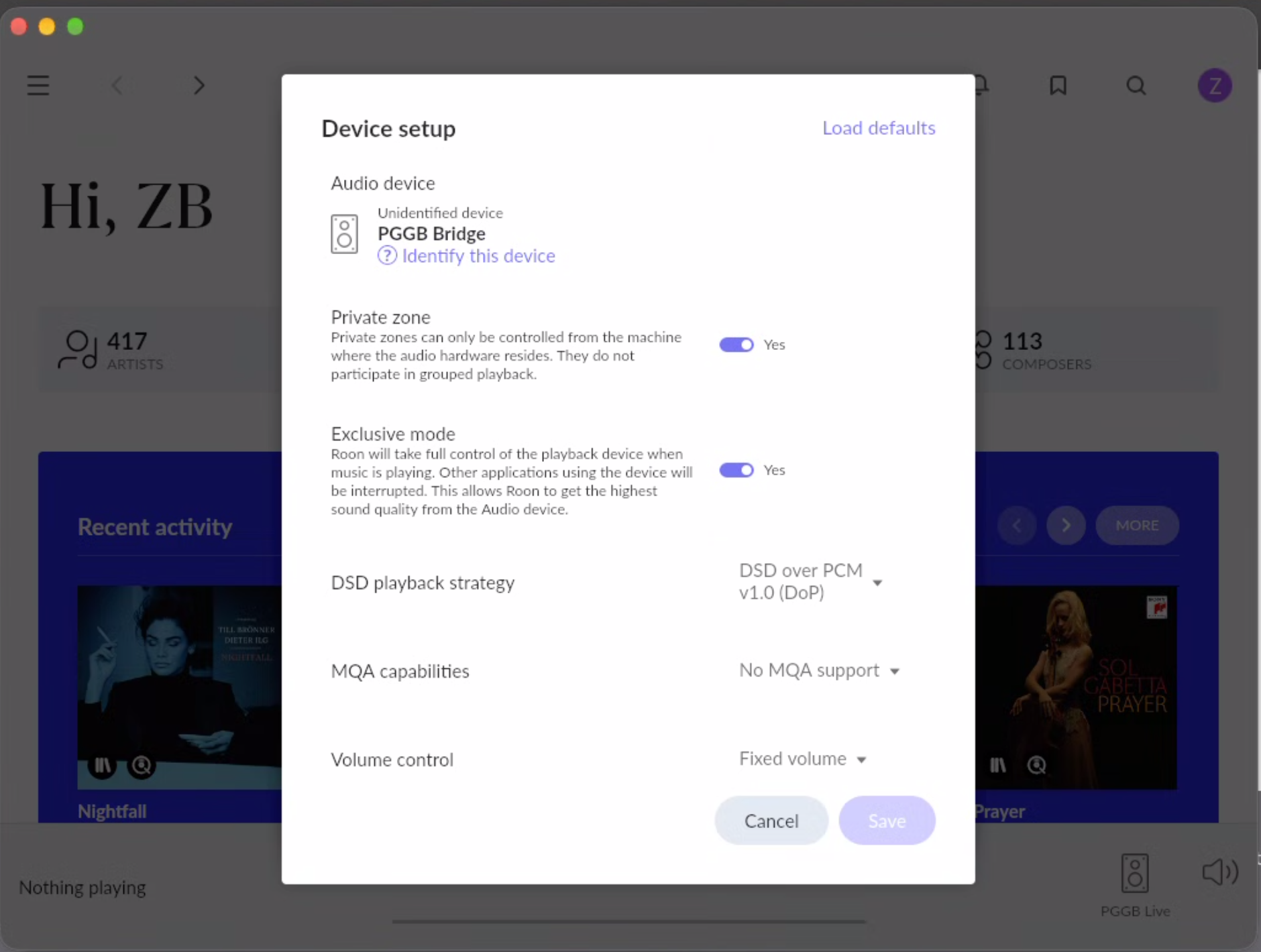
In Roon, follow Settings → Audio → your PGGB zone → Device setup. Set both Private zone and Exclusive mode to Yes, then save the settings.
| Setting | Choose |
|---|---|
| Private zone | Yes |
| Exclusive mode | Yes |
Private zone keeps control on the computer where the audio device resides and excludes the zone from grouped playback. Exclusive mode gives Roon control of that audio device while music is playing.
The screenshot shows PGGB Bridge on a Mac. The Windows device is named PGGB Live. After saving, make sure this is the zone selected in Roon’s player.
Which zone does PGGB follow?
When choosing a zone to follow, PGGB first looks for the bridge’s usual name: PGGB Live on Windows or PGGB Bridge on a Mac. For this match, capitalization, spaces and hyphens do not matter.
If you rename the zone, keep “PGGB” in its name: PGGB prefers those zones and follows the one playing if several match. With no “PGGB” name, it follows the only zone or the only one playing; if several are playing and PGGB cannot identify yours, it waits until only one is playing.
If several zones have “PGGB” in their name or an output’s name, and none or more than one is playing, PGGB keeps following the match it has already chosen. If it has not chosen one since starting, it takes the first match Roon sends; this may differ from the order shown in Roon.
The status line shows Following “<zone name>”. Pausing that zone keeps it followed.
Roon / 03
Let PGGB follow the music.
The bridge carries the audio. Follow Roon also brings track information and playback changes into PGGB, so its display follows what you are hearing.
- In PGGB, follow Settings → Live → Source and queue → Device Input → Roon Extension, then turn on Follow Roon. It is off until you enable it.
- Choose your Roon Core from the list. Use Refresh to look again, or type the Core’s address and press Enter.
Shortcut in Live’s bottom toolbar: playlist icon (Source and queue) → Device Input → Roon Extension → Follow Roon.
The screenshot shows the starting state: Follow Roon is off, so the Core list, Refresh and address box are disabled. Turning it on makes those controls available.
If your Core is not listed ↘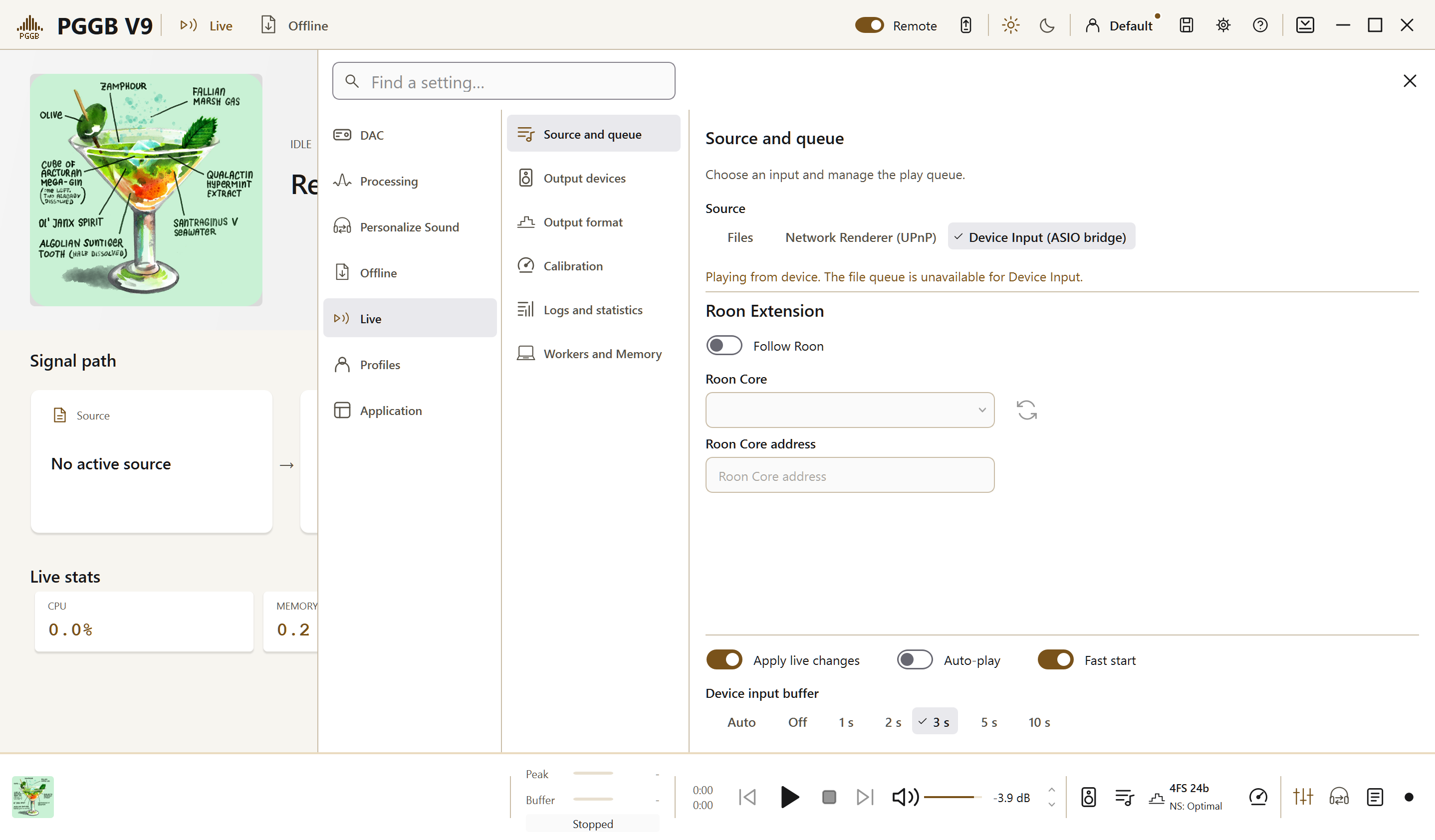
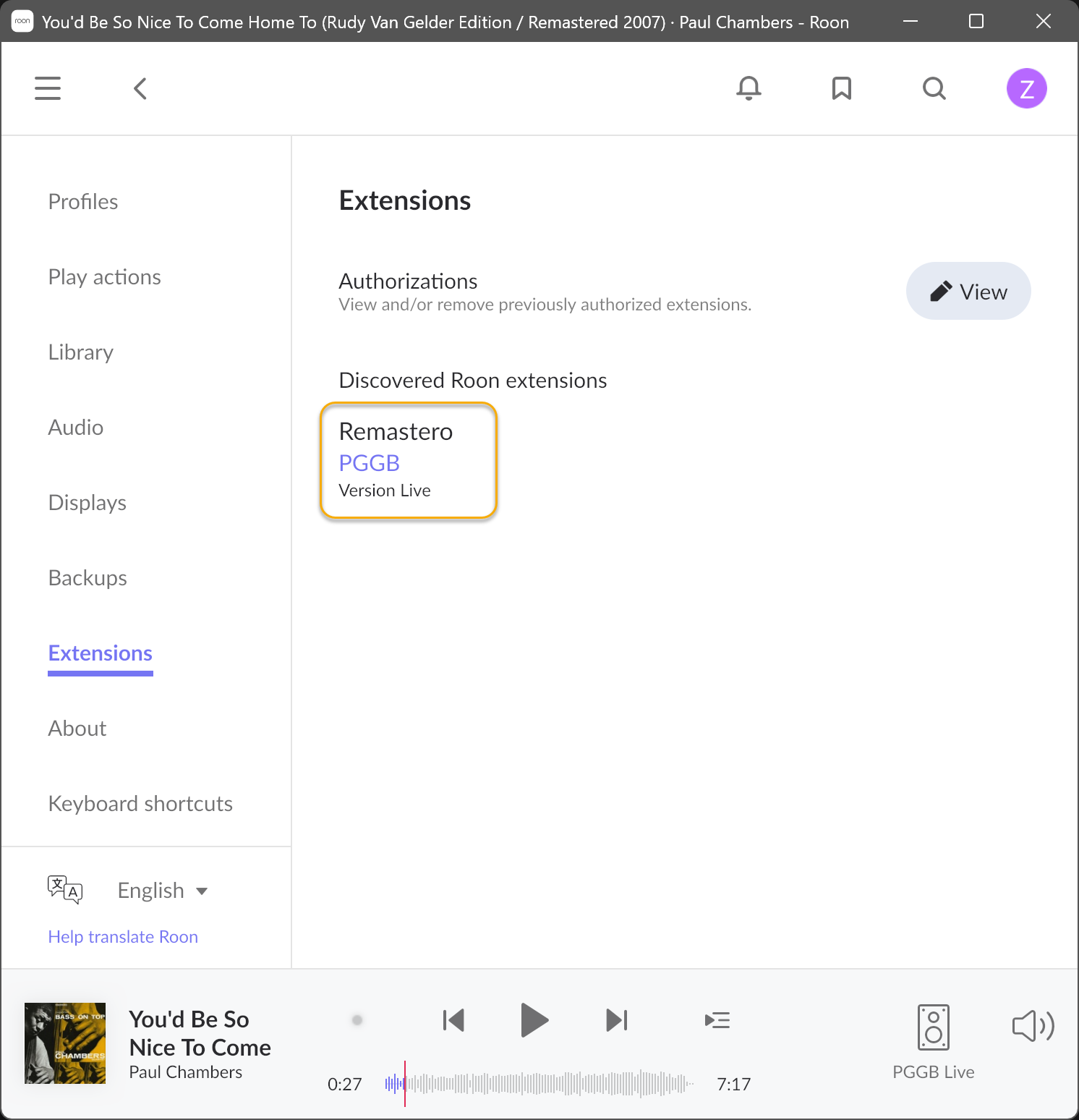
Enable PGGB in Roon.
- In Roon, follow Settings → Extensions → PGGB (Remastero) → Enable. You only need to do this once.
- Play an album to PGGB Live on Windows or PGGB Bridge on a Mac.
ROCK and Nucleus need no additional setup on the Core. Enable the PGGB extension in Roon as described here.
Keep choosing your music in Roon. PGGB follows its track information and playback changes while the Bridge carries the audio for processing.
Set up from your phone or tablet.
In PGGB-Remote, follow Settings (gear icon) → Live → Source & queue → Device Input → Roon Extension. Turn on Follow Roon here. Remote changes the settings on the same PGGB computer.
Choose your Core. If it is not listed, use Refresh or enter its address and press Enter. In Roon, follow Settings → Extensions → PGGB (Remastero) → Enable as described above.
Once connected, Play, Pause, Stop, Previous and Next in Remote control Roon. Choose music and seek within a track in Roon itself.
Open the Remote guide ↗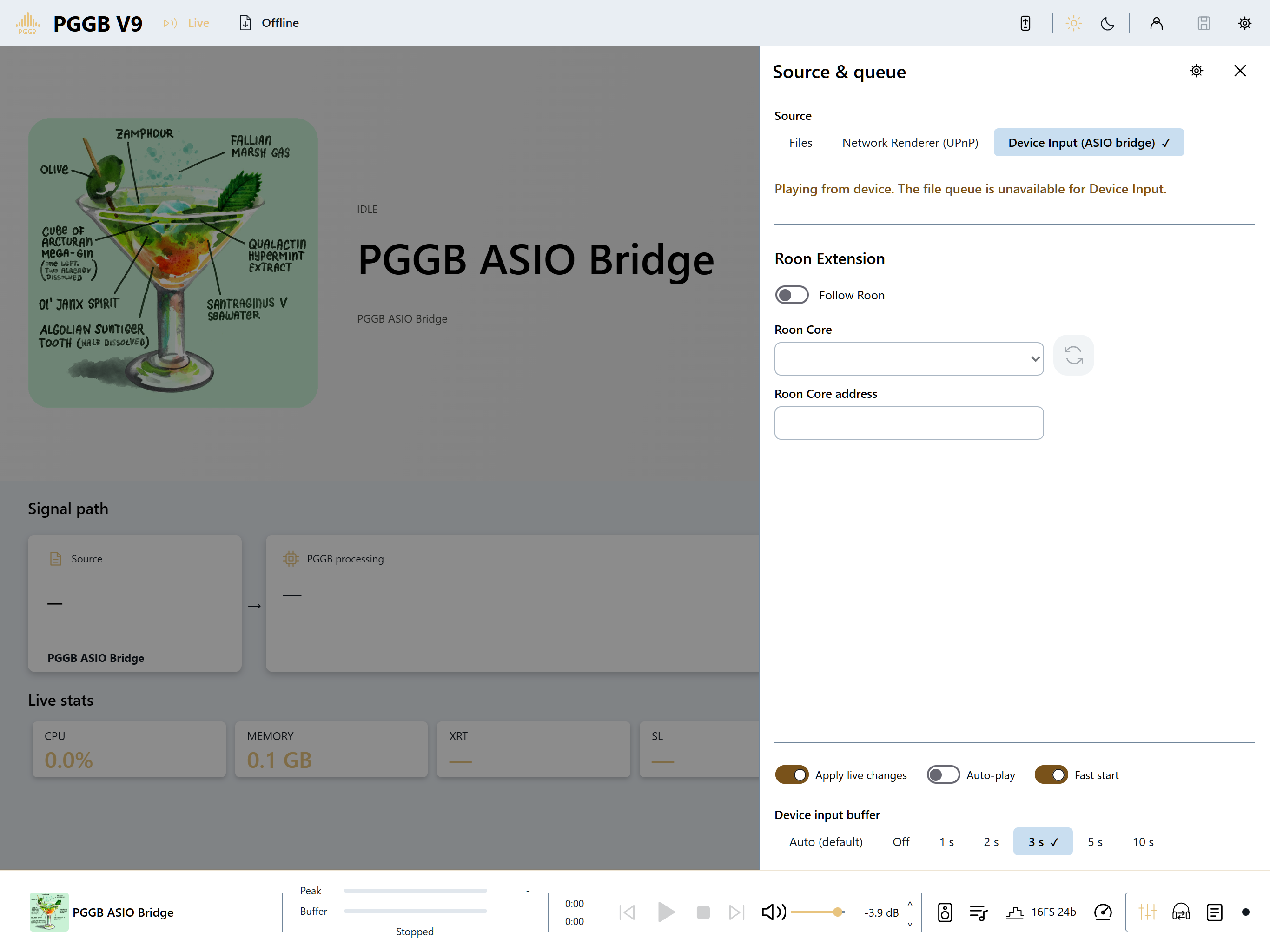
Roon / Listening
Keep using Roon to choose your music.
Skip to another track or seek within one in Roon, and PGGB follows. A sample-rate change switches PGGB to the new rate. Normal gapless track changes continue without interruption.
While PGGB follows a Roon zone, Play, Pause, Stop, Previous and Next in PGGB and PGGB-Remote control Roon itself. You can still choose music and control playback in Roon. To seek within a track, use Roon; seeking is not available in PGGB for Device Input.
When you pause in Roon, PGGB pauses and keeps the music it has received. Roon may continue sending audio for about 5 seconds after Pause. When you press Play in Roon, the music can take up to about 5 seconds to return.
The current track and cover art also appear in PGGB-Remote, so you can see what is playing from your phone or tablet.
Set up PGGB-Remote ↗Roon / Connection help
Find your Core, or enter its address.
PGGB looks for Roon Cores when Follow Roon becomes active in Device Input and whenever you press Refresh. Each look takes about 1.5 seconds and sends one small discovery message on your local network. It does not repeat automatically or run while Follow Roon is off.
If your Core is not listed, open Settings → Live → Source and queue → Device Input → Roon Extension → Roon Core address. Enter its address and press Enter, for example 192.168.1.20. Use your Core’s address, not the example. PGGB connects on port 9330 unless you specify another, as in 192.168.1.20:9330.
Your Core stays selected.
Refreshing the list keeps your chosen Core. PGGB remembers that choice and Cores added by address; it never switches to another Core by itself. The list, Refresh and address box are disabled while Follow Roon is off.
One PGGB computer per home.
Follow Roon currently supports one PGGB computer per home, on Windows or Mac.
Check Settings → Extensions → PGGB (Remastero) in Roon and make sure it is enabled, and that Roon is playing to the zone connected to PGGB. Check the Following status in PGGB to see which zone it has selected.