Included in PGGB / Headphone listening

Zaphod’s Guide
to PGGB-ARC.

ARC · Anthropometric Room and Crossfeed

“Space is big. Really big.”

Start with the recommended crossfeed settings, then adjust speaker angle, head measurements and optional room processing.

PGGB’s crossfeed models aim to preserve the original music as closely as possible without adding coloration.

Marvin the Paranoid Android — colorized engraved illustration
Marvin the Paranoid Android ↗

PGGB-ARC / 01

What PGGB-ARC does.

What it is.

PGGB-ARC is designed to make headphone listening more natural and comfortable. ARC stands for Anthropometric Room and Crossfeed. It combines crossfeed, optional head and shoulder measurements, and a room effect. Introduced in V9, it is available under Settings → Personalize Sound → PGGB-ARC, alongside EQ. Gain and Silence are under Settings → Offline.

ARC has two independent effects. Crossfeed sends a small amount of each channel to the opposite ear, with filtering and delay that model part of what happens when you listen to speakers. Room adds reflections and reverberation to create a sense of space. You can use either effect or both.

Turn on PGGB-ARC using its enable toggle. It is disabled by default. The three panes are Crossfeed, Head measurements and Room. Anthropometry means body measurements; here, it lets you adjust the model to your head and shoulder dimensions. The panes remain grayed out until ARC is enabled.

We recommend starting with crossfeed alone. ARC provides selected spatial cues for headphone listening; it does not attempt to reproduce every aspect of listening to loudspeakers.
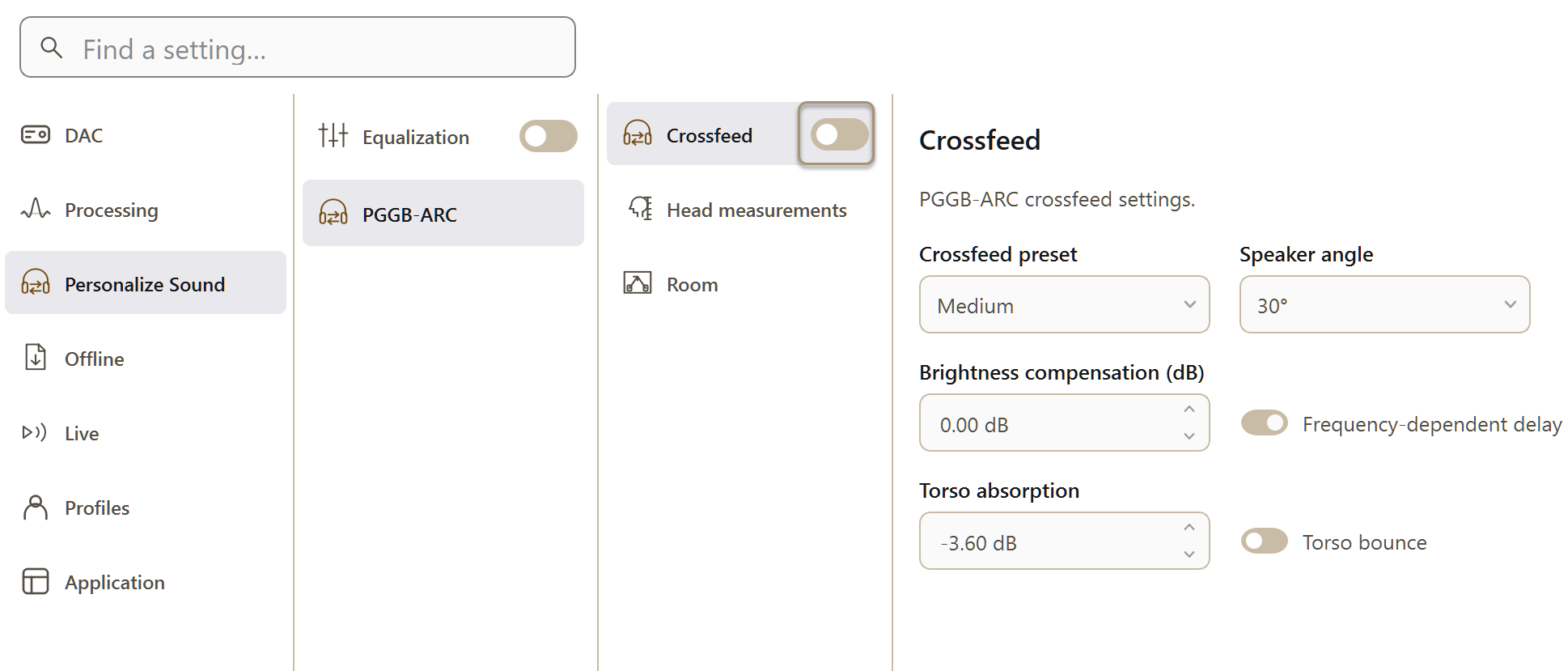
PGGB Settings: crossfeed. Current Windows application, idle.

The highlighted PGGB-ARC panel. Turn on PGGB-ARC to activate the Crossfeed, Head measurements and Room settings.
Why music sounds different on headphones.

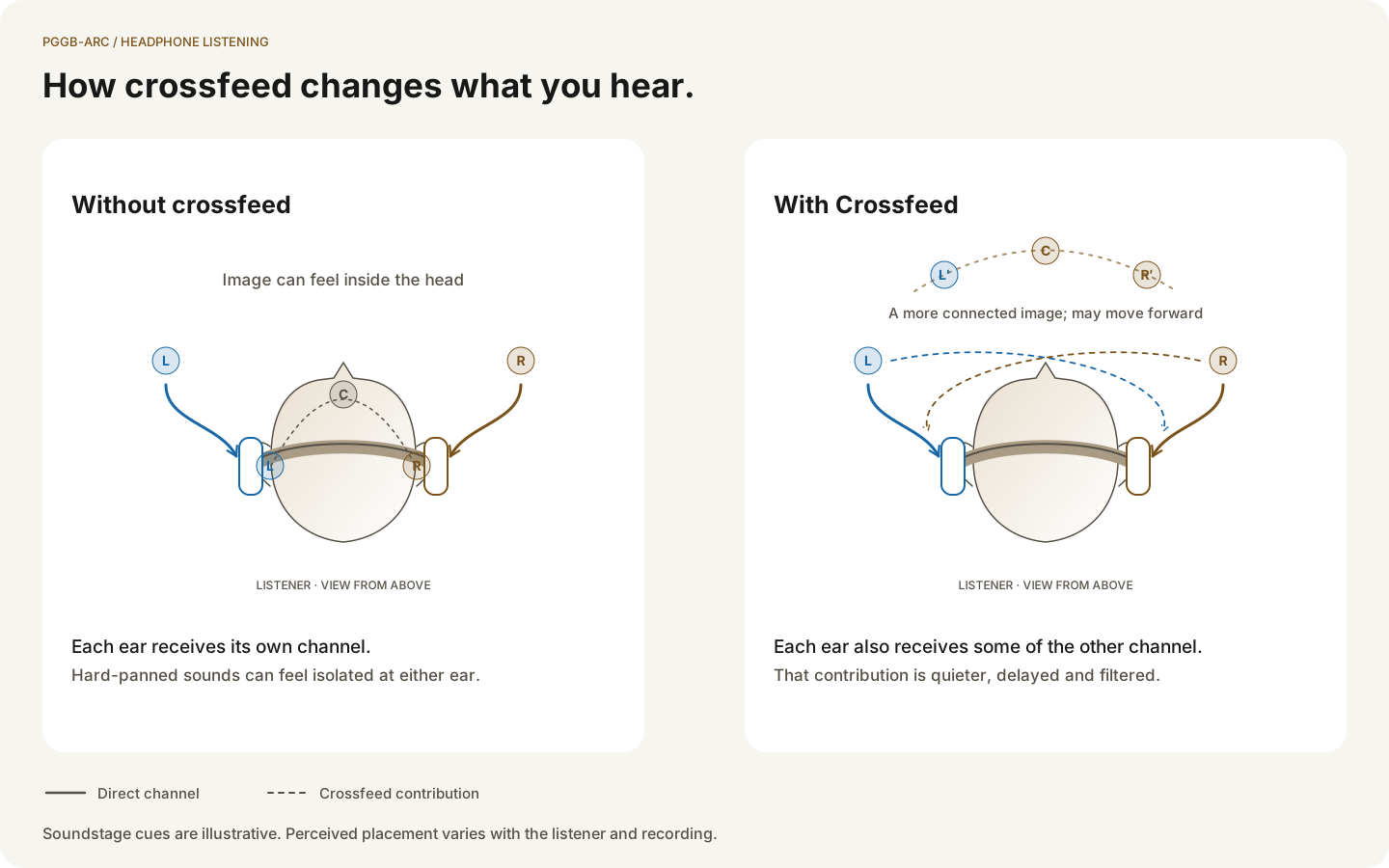
Much stereo music is mixed on loudspeakers. Each ear hears both speakers at slightly different times and levels. Sound from the left speaker reaches the left ear first, then the right ear. The head partly blocks the path to the right ear, reducing high-frequency energy. These differences help us locate sounds.

Headphones send the left channel to the left ear and the right channel to the right ear, with very little acoustic mixing. This can make the stereo image seem to be inside your head. An instrument placed entirely or mostly in one channel may sound unusually close to that ear.

Direct headphone channels and controlled crossfeed, with conceptual perceived soundstage cues.

Without crossfeed, each ear receives its own channel. With crossfeed, each ear also receives a filtered and delayed contribution from the opposite channel. The perceived change in sound position varies between listeners.

Crossfeed and room.

Crossfeed sends a quieter, delayed and filtered copy of each channel to the opposite channel. It can soften the separation of strongly panned sounds and make long headphone sessions more comfortable. Some listeners hear the sound move slightly forward; this varies with the listener and recording.

Room adds early reflections and fading reverberation. Early reflections are the first sounds that reach you after bouncing off nearby surfaces. Reverberation follows as many reflections overlap into a more continuous sound. Together, they create a sense of space around the music.

Crossfeed adjusts the relationship between the channels; Room adds spatial ambience. Evaluate them separately at first, then combine them if you prefer the result.

What to expect.

The benefit of ARC depends on the recording, headphones and listener. These are the changes you may hear and the limits to bear in mind.

Possible benefits:

  • More comfortable listening with strongly separated stereo mixes, including older recordings with instruments placed entirely in one channel.
  • A more connected stereo image, with less emphasis on separate sounds at each ear.
  • A greater sense of space when the Room effect is added to a dry recording with little existing reverberation.
  • Minimal tonal coloring, with automatic brightness compensation for crossfeed. ARC uses a head and torso model rather than a fixed set of full ear measurements from another listener.
Limitations
  • ARC does not reproduce loudspeakers in a real room.
  • Sound may still appear to be inside your head. A convincing sense of sound outside the head is not guaranteed.
  • ARC does not recover stereo information missing from the recording. Crossfeed cannot create a wide stereo mix from a mono source.

Try ARC on a familiar track before processing a full album. Listen for a useful improvement at comfortable settings, and change one control at a time.

PGGB-ARC / 02

Getting started.

Start here.

The defaults provide a practical starting point. Begin with crossfeed, then try Room if the recording would benefit from additional ambience. This makes it easier to hear what each effect contributes.

For an illustrated view of the panel and its panes, see Explore PGGB App.

  1. Open Settings → Personalize Sound → PGGB-ARC and turn on PGGB-ARC.
  2. On the Crossfeed pane, leave Crossfeed Preset at its default, Medium. Leave the other controls at their defaults.
  3. On the Room pane, leave Room Preset at Off.
  4. Process a familiar track with ARC enabled. Compare it with a version processed using the same settings but with ARC disabled. Listen for how strongly the left and right channels feel separated.
  5. If you like the crossfeed result and want more ambience, set Room Preset to Living Room. Process the same track again and compare. Recordings that already contain plenty of room sound may not need this.
  6. Adjust Room level in steps of about 3 dB. Lower it for a subtler effect or raise it if you want more room sound.

You can leave the remaining controls at their defaults. The sections below explain when a further adjustment may be useful.

If the stereo image becomes too narrow, reduce Crossfeed Preset by one step. If the result sounds overly reverberant, lower Room level or turn Room off. Adjust the effect responsible for the change you hear.

Try settings while you listen.

PGGB-Live lets you compare crossfeed settings during playback, without processing a new file for each change. We recommend it for finding a crossfeed setup you enjoy.

Even if you typically use DSD output for your DAC, we recommend starting with PCM output so you can quickly compare settings and choose the ones you like best before moving to your preferred output format.

  1. Choose Live in the header, then select your device under Settings → Live → Output devices.
  2. Choose PCM output and start a familiar track. Changes apply almost instantly with PCM, so you can compare settings while the previous one is still fresh in your memory.
  3. Enable Apply live changes.
  4. Return to Settings → Personalize Sound → PGGB-ARC, enable ARC and change one crossfeed setting at a time. PGGB briefly pauses playback while applying the change, then resumes.
  5. Once you have chosen your crossfeed settings, return to offline processing if you also want to add Room.

Crossfeed and its head and torso settings work during live playback. Room requires offline processing and is grayed out while PGGB-Live is active. To use Room, stop live playback and choose Offline in the header, then process your files.

PGGB-ARC / 03

Crossfeed.

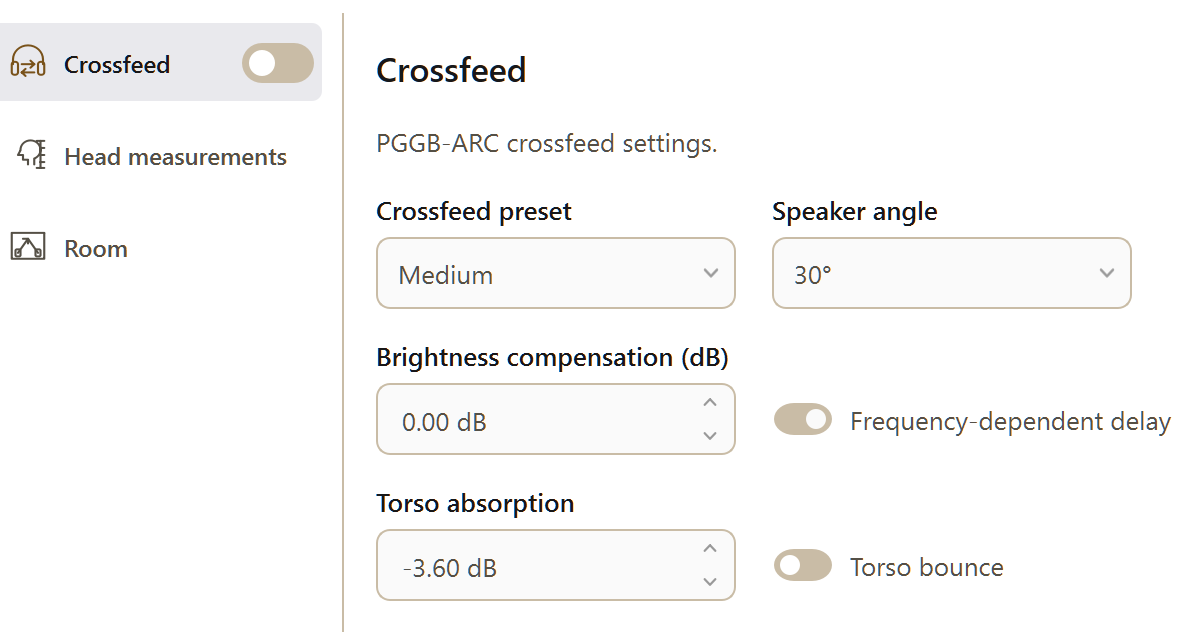
PGGB Settings: crossfeed. Current Windows application, idle.
Current interface preview · select to enlarge

The Crossfeed pane at its default settings. Torso Absorption is unavailable while Torso Bounce is off.

Crossfeed Preset.

Crossfeed Preset controls the amount of blending between channels. We recommend starting with Medium. Selecting Off disables crossfeed and grays out the remaining crossfeed controls and the Head measurements pane.

Setting
Crossfeed Preset
Default
Medium
Choices
Off, Mild, Medium, Strong
What it does
Off disables crossfeed. Mild applies the gentlest blending and retains more channel separation. Medium is the recommended starting point. Strong applies the most blending and can help with recordings that have pronounced left-right separation.

If a recording sounds too narrow or approaches mono, choose a lower preset. The best setting can vary between recordings.

Crossfeed background and preset designOptional technical background on the crossfeed presets.

Benjamin Bauer described an early crossfeed approach at CBS Laboratories in 1961 (Stereophonic Earphones and Binaural Loudspeakers) and patented it as US 3,088,997. Later analog designs and software such as bs2b developed the same general idea: allow each ear to hear a controlled contribution from the opposite channel. PGGB implements crossfeed using digital filters.

Mild follows Jan Meier's analog crossfeed design. Medium follows Chu Moy's CMoy circuit. Strong uses a model of a listener sitting about 3 meters from a conventional pair of loudspeakers.

All three presets aim for a moderate effect suitable for extended listening. Choose the lowest strength that gives you the stereo presentation you prefer.

Speaker Angle.

Speaker Angle sets the positions of the left and right speakers relative to the direction you are facing. It changes the spatial cues used by crossfeed and can affect the perceived width of the stereo image in the same way that speaker placement would.

Setting
Speaker Angle
Default
30°
Choices
30°, 45°, 60°, 90°, 120°
What it does
30° represents a conventional stereo speaker layout and is the recommended starting point. Larger angles model a wider placement. Angles above 90° are experimental and would reduce the effect of crossfeed.

The value is the angle to each speaker. At 30°, one speaker is 30° to the left and the other 30° to the right, giving 60° between them.

Why the default angle is 30 degreesOptional background on the modeled speaker layout.

A conventional stereo monitoring layout places the listener and the two speakers at the corners of an equilateral triangle. Each speaker is therefore 30 degrees from straight ahead, with 60 degrees between them. This is the reference front-speaker geometry described in ITU-R BS.775.

PGGB uses this familiar geometry as its starting point. Larger angles let you compare a wider modeled placement. Values above 90 degrees place the modeled speakers behind the listener's side-to-side line and are offered for experimentation.

Brightness Compensation.

Crossfeed can slightly reduce perceived brightness because the signal added from the opposite channel contains less high-frequency energy. PGGB compensates for this automatically. Brightness Compensation lets you adjust the tone further to suit the recording and your preference.

Setting
Brightness Compensation
Default
0.00 dB
Range
−6.00 to +6.00 dB
What it does
Leave at 0.00 dB to use PGGB's automatic compensation without an additional adjustment. Positive values make the result brighter; negative values make it darker.

The value is in decibels (dB), a unit used to express level changes. You can type values to two decimal places into the numeric controls on the PGGB-ARC tab or use their arrow buttons.

How automatic brightness compensation worksAutomatic compensation remains active whenever crossfeed is enabled.

The crossfeed signal models the reduction in high frequencies caused by the head between a speaker and the far ear. Adding this filtered signal changes the overall tonal balance.

PGGB also adjusts the direct-channel response to compensate for that change. Brightness Compensation is an offset added to this automatic correction. A value of zero retains the correction; it does not turn compensation off.

Frequency Dependent Delay.

The difference in arrival time between your ears depends on frequency as well as head size. Frequency Dependent Delay models this behavior by applying different delays at low and high frequencies. It is enabled by default, and we recommend leaving it on.

Setting
Frequency Dependent Delay
Default
On
Choices
On, Off
What it does
Uses a frequency-dependent delay model instead of one delay for all frequencies. The audible difference is usually subtle; compare On and Off on a familiar track if you want to evaluate it.
Why the delay varies with frequencyOptional technical background on interaural time differences.

An interaural time difference is the difference in arrival time at the two ears. At low frequencies, sound bends around the head, a behavior called diffraction. Below about 1.5 kHz, the delay can be roughly 50% greater than a simple path-length estimate suggests. George Kuhn studied this frequency dependence using KEMAR, an acoustic measurement mannequin, in 1977 (Model for the Interaural Time Differences in the Azimuthal Plane).

PGGB calculates the transition between its low- and high-frequency delay behavior from the head size. A larger head gives a lower transition frequency; a smaller head gives a higher one. With the default size, the transition is around 1250 Hz. There is no separate transition-frequency control.

A fixed-delay crossfeed model uses the same timing offset at every frequency. PGGB varies the delay with frequency to represent the head model more closely.

Torso Bounce.

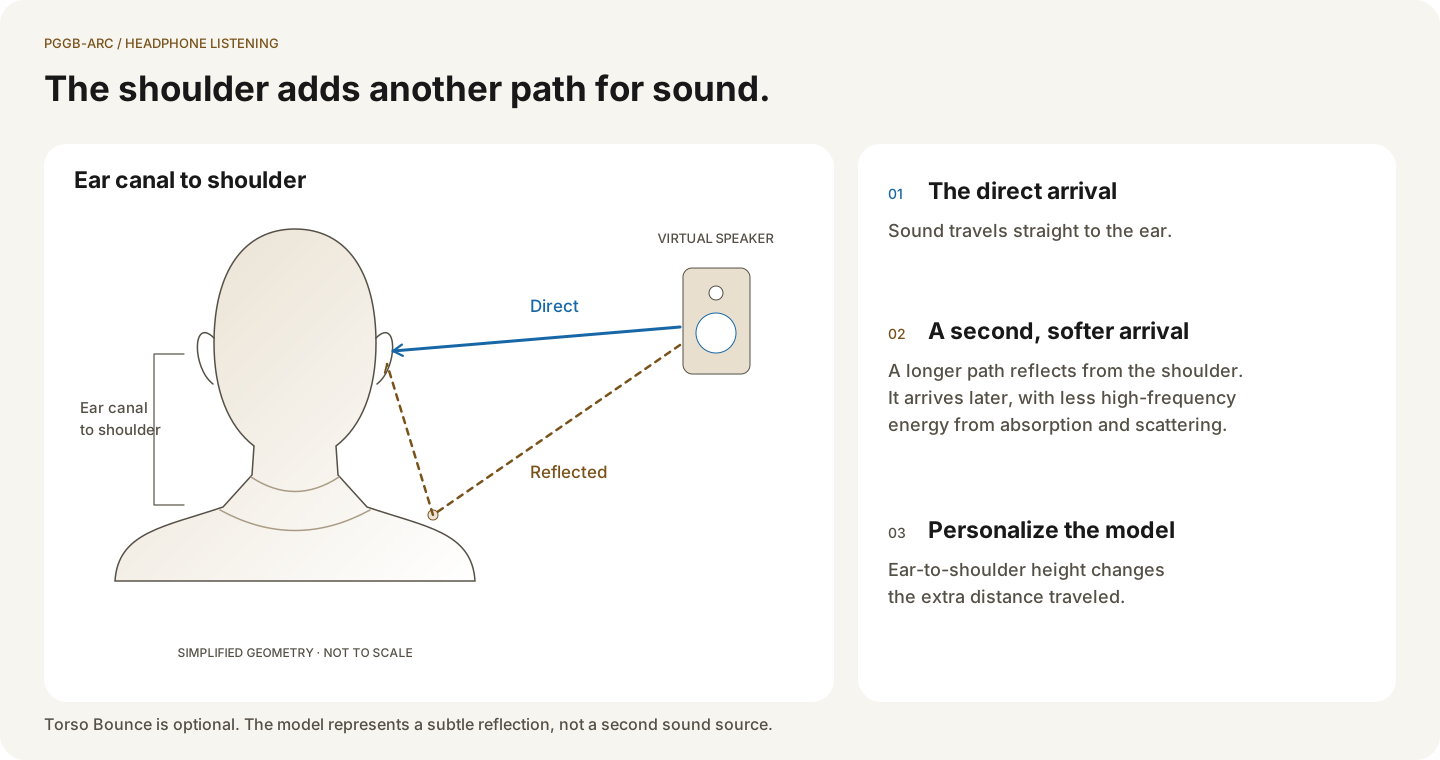
Torso Bounce adds a modeled reflection from the shoulder and upper torso. When listening to speakers, this reflected sound reaches the ear slightly after the direct sound and with reduced high-frequency energy. Adding it can provide a subtle sense of depth.

Setting
Torso Bounce
Default
Off
Choices
On, Off
What it does
Adds the modeled shoulder reflection. It is off by default. Try it after choosing your main crossfeed settings.

If you enable Torso Bounce, check Ear-to-shoulder distance on the Head measurements pane. That measurement determines the reflection's delay.

Direct and shoulder-reflected sound paths, showing ear-to-shoulder height.

The direct sound follows the shorter path to the ear. The shoulder reflection follows a longer path and arrives a fraction of a millisecond later, with some high-frequency energy absorbed by clothing.

The head and torso modelOptional background on the model used for crossfeed and Torso Bounce.

The model combines head-related delay and filtering with a delayed, filtered shoulder reflection. This approach follows C. P. Brown and R. O. Duda's 1998 work (A Structural Model for Binaural Sound Synthesis, free PDF).

This approach models the acoustic effects of the head, shoulders and outer ears separately. PGGB uses a few measurements to model the head and shoulder contributions, without requiring a full set of acoustic measurements of your ears.

Torso Absorption.

Torso Absorption adjusts the level of the modeled shoulder reflection. It is available only when Torso Bounce is enabled.

Setting
Torso Absorption
Default
−3.60 dB
Range
−12.00 to 0.00 dB
What it does
More negative values reduce the reflection level. At 0.00 dB, no additional attenuation is applied, so the reflection is strongest. Start with the default and adjust for a subtle effect.

PGGB-ARC / 04

Your measurements.

Anthropometry means measuring the human body. Here, your head and shoulder measurements help personalize ARC’s crossfeed model.

PGGB Settings: corrected settings anthropometry. Current Windows application, idle.
Current interface preview · select to enlarge

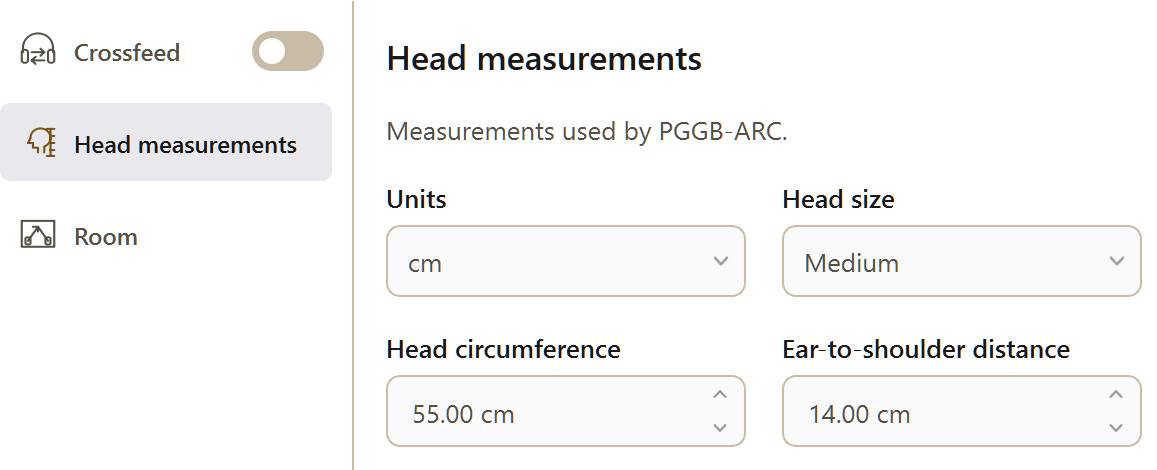
The Head measurements pane with the default head and shoulder measurements.

The Head measurements pane lets you adapt the crossfeed model to your head and shoulder dimensions. PGGB uses these measurements to calculate timing differences. The defaults provide a useful starting point, so you can begin listening without measuring anything.

These measurements affect crossfeed and its torso model. The pane is grayed out when Crossfeed Preset is Off.

Units.

Use metric (centimeters) or imperial (inches) for your measurements.

Setting
Units
Default
cm
Choices
cm, inches
What it does
Select centimeters or inches for both measurements. PGGB converts the existing values automatically when you change units.

Head Size.

Use Head Size to select a preset circumference, or choose Custom to enter your own measurement.

Setting
Head Size
Default
Medium
Choices
Small, Medium, Large, Custom
What it does
Small sets the circumference to 53 cm, Medium to 55 cm and Large to 58 cm. Start with Medium if you do not know your measurement. Custom lets you enter a measured value.

Head Circumference.

Setting
Head Circumference
Default
55.00 cm (21.65 in)
Range
46.00 to 66.00 cm (18.11 to 25.98 in)
What it does
The distance around your head. A larger value increases the modeled delay between ears and may change the perceived stereo width. Entering a value changes Head Size to Custom.

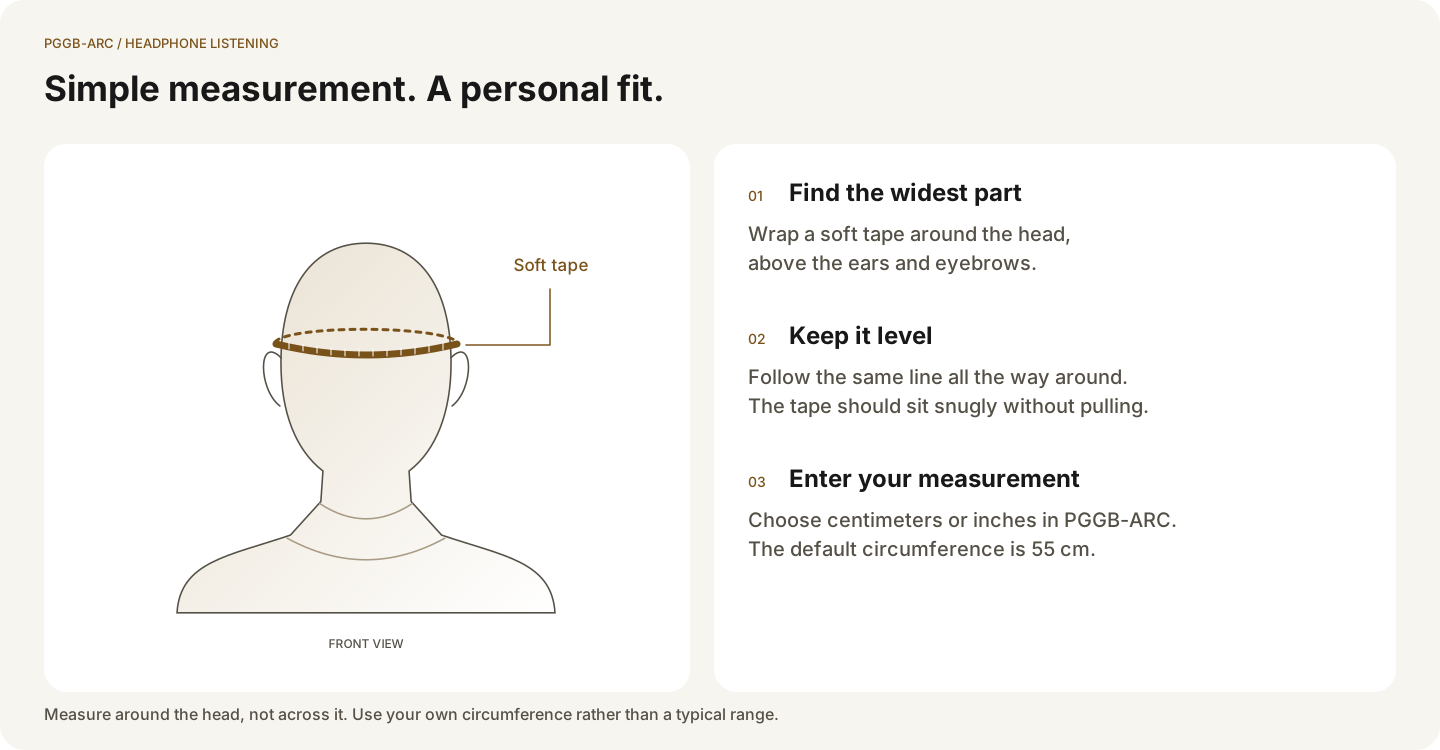
Use a soft tape measure around your head, just above the ears and eyebrows, as you would when measuring for a hat. Enter the circumference in the selected units. If you prefer not to measure, leave the default at 55.00 cm (21.65 in).

How to measure head circumference above the ears and eyebrows with a level soft tape.
Where the default measurements come fromOptional background on the reference dimensions.

The default dimensions are based on KEMAR, an acoustic measurement mannequin described by Burkhard and Sachs in 1975 (Anthropometric Manikin for Acoustic Research). PGGB uses a head circumference of 55 cm and an ear-to-shoulder height of 14 cm.

These reference dimensions are a starting point, not a measurement of every listener. Personal measurements are most useful if your dimensions differ noticeably from the defaults, or if you enable Torso Bounce and want its delay to reflect your shoulder height.

Ear-to-shoulder distance.

Setting
Ear-canal-to-Shoulder Height
Default
14.00 cm (5.51 in)
Range
10.00 to 21.50 cm (3.94 to 8.46 in)
What it does
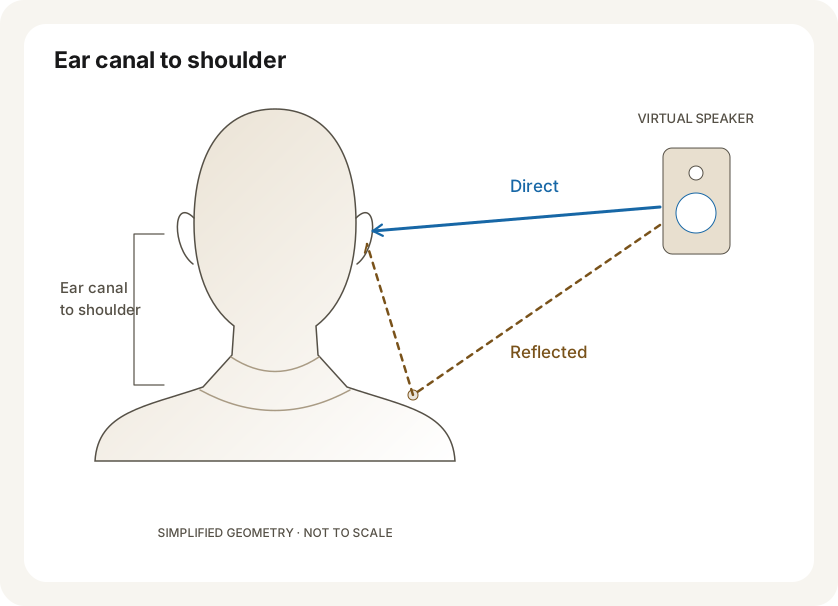
The vertical distance from the ear opening to the shoulder. It determines the delay of the modeled shoulder reflection. Changing it can also affect the perceived tonal character of that reflection.

Sit upright with your head level. Measure vertically from the ear-canal opening to the top of the shoulder where it meets the neck. Use the ear opening as the starting point, not the bottom of the earlobe. Enter the result in the selected units, or keep the default of 14.00 cm (5.51 in).

This measurement affects only Torso Bounce. It has no effect while that option is off.

Ear-canal-to-shoulder height: measure vertically from the ear opening to the top of the shoulder.

PGGB-ARC / 05

Room.

PGGB Settings: corrected settings room. Current Windows application, idle.
Current interface preview · select to enlarge

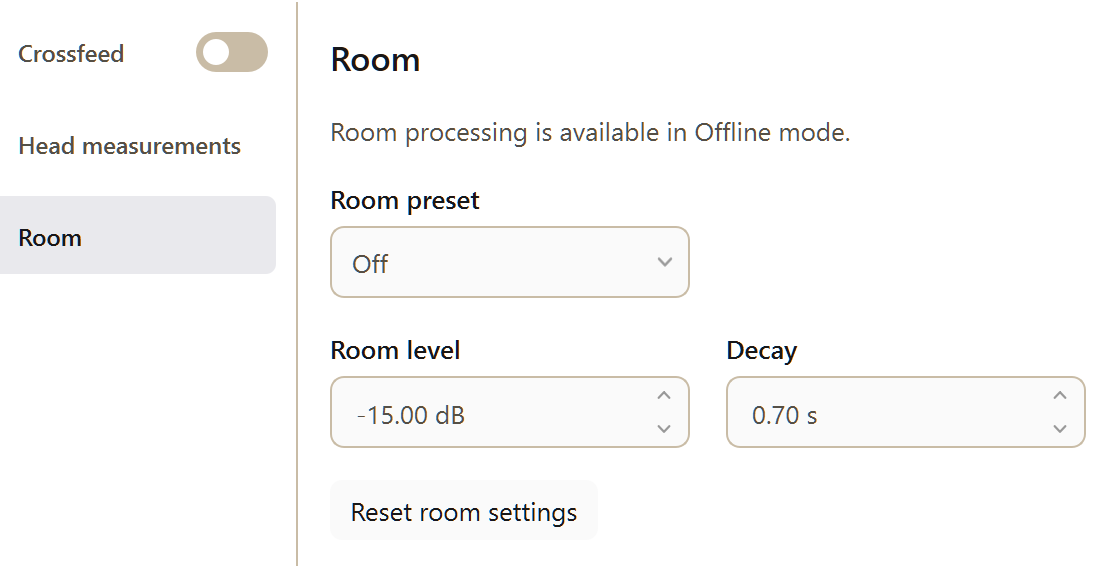
The Room pane with Living Room selected. Each preset supplies a reflection level and decay time. Reset room settings restores the selected room's defaults.

Choosing a room.

Room Preset adds a modeled listening space. Choose a room and PGGB sets its reflections, level and decay time. We recommend trying Living Room first on a dry recording with little existing ambience. Room works independently of crossfeed and is available for offline processing.

Preset What it is for
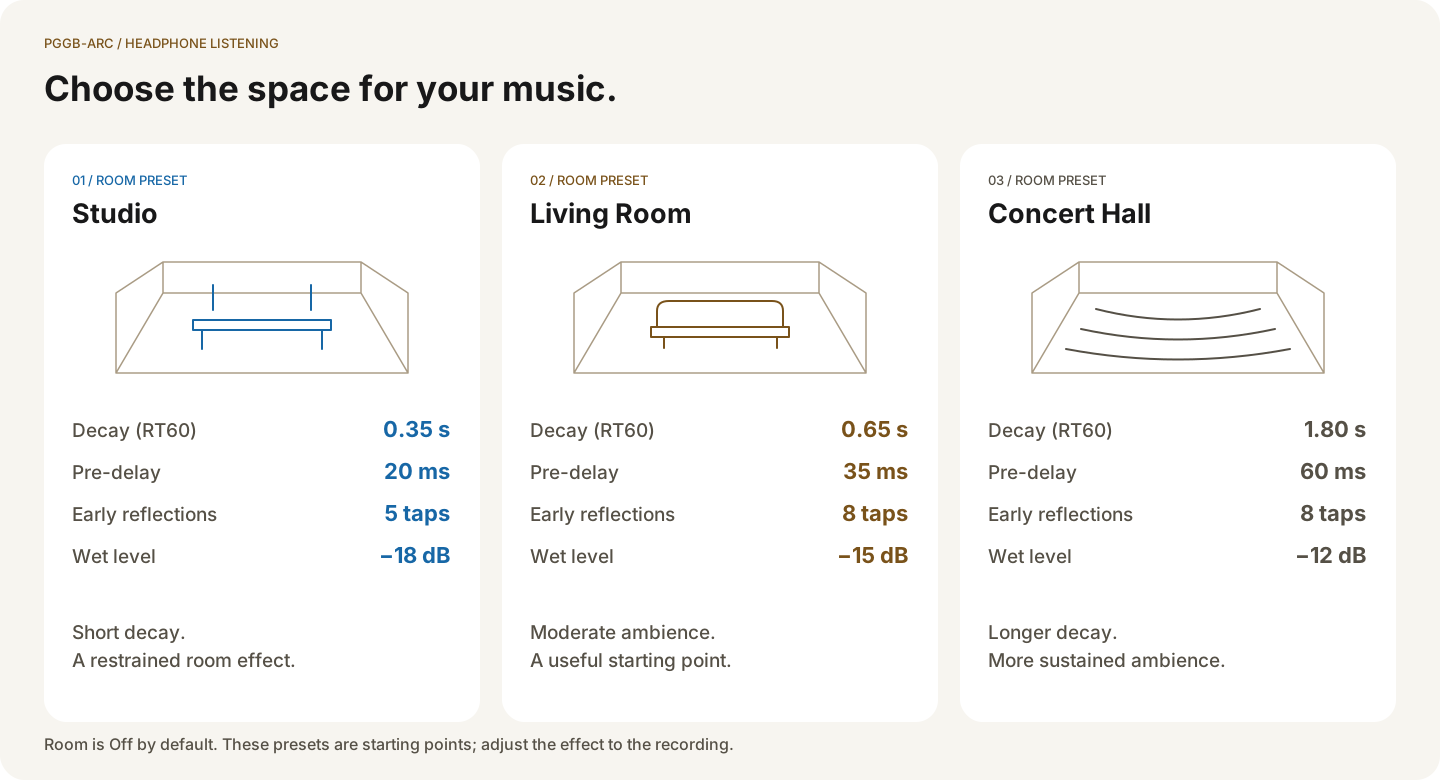
Off The default. Adds no room effect. Use it for crossfeed alone or when the recording already has sufficient ambience.
Studio A small space with a short decay. Useful when you want a restrained room effect for vocals or acoustic music.
Living Room A moderate room effect and the recommended starting point. Adjust its level to suit the recording.
Concert Hall A larger space with a longer decay. Try it when you want more sustained ambience, including suitable orchestral or choral recordings. Use less if the recording already contains strong reverberation.
Studio, Living Room and Concert Hall presets with their decay, pre-delay, reflection count and wet level.

The room presets and their default reflection levels and decay times.

What a room preset controlsEach preset configures the room model; level and decay remain adjustable.

A room preset sets the early reflections, the delay before reverberation begins, the reflection level and the decay time. Studio starts at −18 dB with a 0.35-second decay; Living Room at −15 dB with a 0.65-second decay; and Concert Hall at −12 dB with a 1.80-second decay.

You can adjust Room level and Decay after selecting a preset. The other characteristics remain those of the selected room.

Early reflections and reverberation.

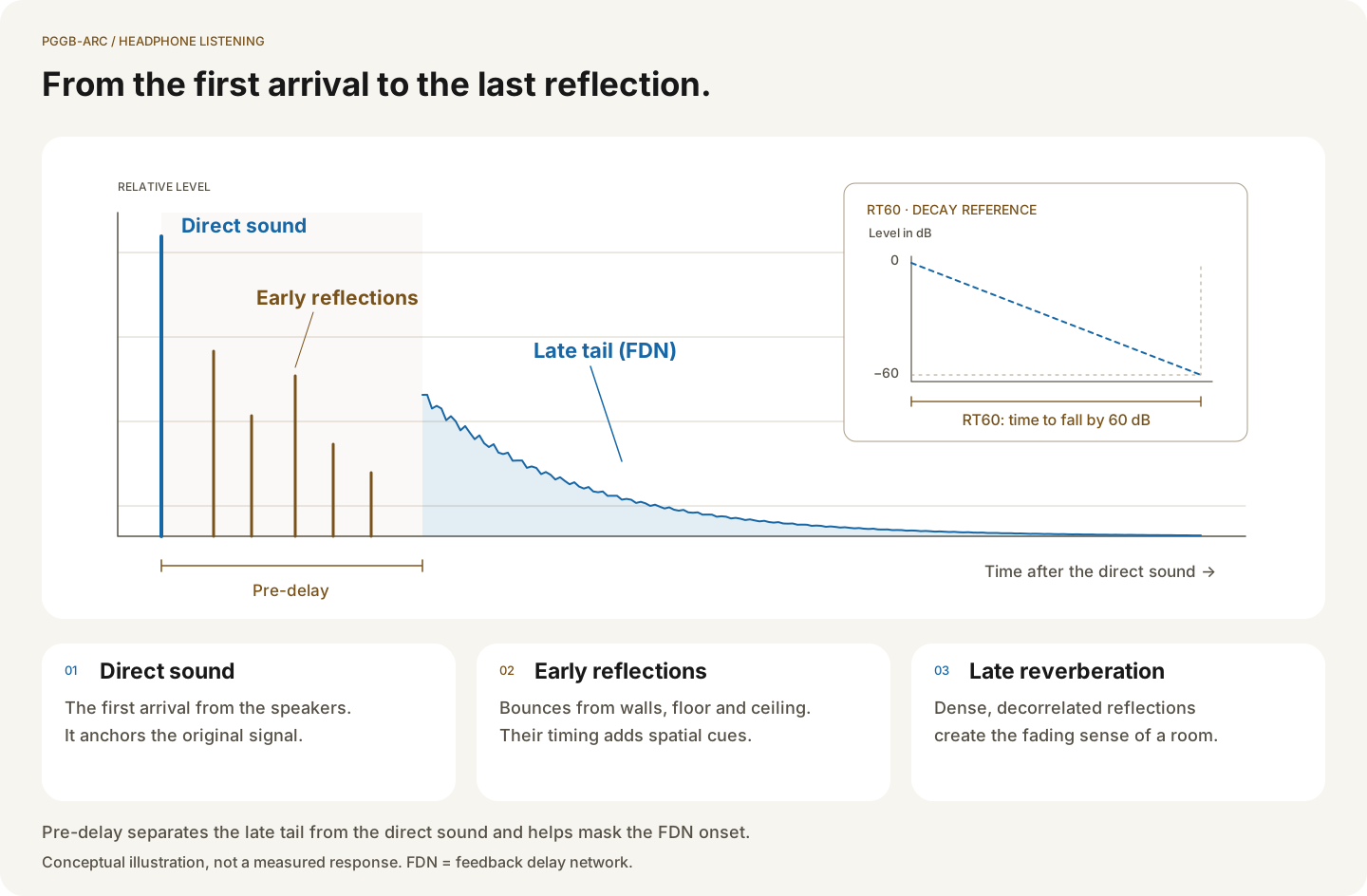
The room model combines early reflections with late reverberation. Early reflections represent the first arrivals from the walls, floor and ceiling and help establish a sense of room size. Late reverberation is the overlapping sound that fades after those first reflections. Adjust the level to control how prominent the room sounds, and the decay time to control how long it persists.

Conceptual room response showing direct sound, early reflections, pre-delay and reverberant tail.

Direct sound arrives first, followed by early reflections and the reverberation tail. The decay time describes how long the tail takes to fade.

How the room model is builtOptional technical background on reflections and reverberation.

PGGB models distinct early reflections separately from the smoother reverberation tail. This lets it control both the initial sense of space and the longer decay.

Early reflections use the image-source method described by J. B. Allen and D. A. Berkley in 1979 (Image Method for Efficiently Simulating Small-Room Acoustics). The reverberation tail follows the delay-network approach of J.-M. Jot and A. Chaigne in 1991 (Digital Delay Networks for Designing Artificial Reverberators), building on Manfred Schroeder's 1962 work (Natural Sounding Artificial Reverberation).

Room level.

Setting
Room Reflection Level
Default
Set by the selected room preset
Range
−30.00 to 0.00 dB
What it does
Controls the level of the added room sound. More negative values make it subtler; values closer to zero make it more prominent.

Adjust this control first if the room effect is too strong or too weak. A reduction of about 3 dB is a useful first step for a subtler result. Increase it by a similar amount if you want more ambience.

Decay.

Setting
Room Reflections Decay Time
Default
Set by the selected room preset
Range
0.20 to 3.00 seconds
What it does
Controls how long the reverberation takes to fade. Shorter values suggest a smaller or more absorbent space; longer values give a more sustained room effect.

As starting points, try 0.3–0.5 seconds for a restrained effect, 0.5–0.8 seconds for moderate ambience, or 1.5–2.5 seconds for a more sustained hall effect. The recording's existing reverberation matters, so compare before choosing a longer decay.

PGGB remembers your level and decay adjustments for each room while the application is running. Press Reset room settings to restore the selected room's default values.

Understanding decay timeOptional technical background on RT60.

Reverberation decay time is commonly expressed as RT60: the time for the reverberant sound level to fall by 60 dB. A shorter time describes a more absorbent space; a longer time describes a more reverberant one.

For scale, a treated studio may have a decay around 0.3 seconds, a living room around 0.5 seconds and a concert hall around 2 seconds. A large stone cathedral can exceed 5 seconds. These are illustrative values; PGGB's control ranges from 0.20 to 3.00 seconds.

PGGB-ARC / 06

ARC and the rest of PGGB.

PCM and DSD.

ARC supports both PCM and DSD with the default processing engine. You do not need a separate ARC setup for DSD.

Keep Precision optimized selected, as it is by default. If you select Legacy and process a DSD source file, ARC is skipped.

Using ARC while you listen.

PGGB-Live supports crossfeed, including head measurements, Frequency Dependent Delay and the torso settings. Enable Apply live changes to hear changes during playback. PGGB briefly pauses while applying a change, then resumes.

Room requires offline processing. Its pane is grayed out while PGGB-Live is active. Stop live playback and set Mode to Offline, then process your files to include the Room effect.

Processing order.

PGGB manages the processing order automatically. Crossfeed acts on the direct sound, while the room reflections include their own timing differences between channels. ARC combines these contributions as part of its processing.

If you want both effects, enable them within ARC. Applying another crossfeed stage later in your player would also process the room reflections and can alter their intended spatial cues.

PGGB-ARC / 07

Questions.

Frequently asked questions.

Will crossfeed make my music sound like mono?

Crossfeed retains stereo but reduces channel separation. If the image becomes too narrow, reduce Crossfeed Preset from Strong to Medium or from Medium to Mild. Compare with Off to hear the original separation.

When should I add a room effect?

Try Room when a dry recording would benefit from added ambience. Recordings with strong natural or recorded reverberation may sound better with Room off. If the result loses clarity or sounds overly reverberant, lower the reflection level, shorten the decay or turn Room off.

Can I use one without the other?

Yes. Crossfeed and Room are independent. Leave Room Preset at Off for crossfeed alone, or set Crossfeed Preset to Off to use only Room. Room remains an offline feature.

Does it slow PGGB down?

ARC adds processing work. The default crossfeed settings add a few percent to processing time; enabling all options can roughly double that additional work. The expected overhead is under about 15%, but actual processing time depends on your computer and settings. Room is available only offline.

Do I have to measure my head?

No. Start with the default measurements. Enter your own if your dimensions differ noticeably or if you want to tune Torso Bounce using your ear-to-shoulder height.

Further reading.

These references provide background on the models and methods used by ARC:

For the shared processing settings and playback setup, see the PGGB guide and the PGGB-Live guide.

What are you looking for?