Download and licensing
Install and activate PGGB.
Choose the installer for your computer, start the trial and activate a paid license when you are ready.
Download PGGB.
On Mac, choose the installer for your processor: Apple Silicon or Intel. Both .pkg installers include the PGGB application, the PGGB Bridge audio driver and the PGGB Remote web app.
PGGB-Audio-Link (PAL) downloads
Install the endpoint on the computer connected to your DAC. Choose its operating system and processor below.
Debian, Ubuntu and Raspberry Pi OS
Install or update from a terminal
Choose your processor. Run both commands in the same folder on the computer connected to your DAC. They install PAL or update an existing installation.
Intel / AMD 64-bit (.deb)
curl -L -O https://github.com/remastero/pggb-downloads/releases/latest/download/pggb-audio-link_amd64.deb
sudo apt install ./pggb-audio-link_amd64.deb
ARM64 (.deb)
curl -L -O https://github.com/remastero/pggb-downloads/releases/latest/download/pggb-audio-link_arm64.deb
sudo apt install ./pggb-audio-link_arm64.deb
Fedora and other RPM systems
Install or update from a terminal
Choose your processor. Run both commands in the same folder on the computer connected to your DAC. They install PAL or update an existing installation.
Intel / AMD 64-bit (.rpm)
curl -L -O https://github.com/remastero/pggb-downloads/releases/latest/download/pggb-audio-link.x86_64.rpm
sudo dnf install ./pggb-audio-link.x86_64.rpm
ARM64 (.rpm)
curl -L -O https://github.com/remastero/pggb-downloads/releases/latest/download/pggb-audio-link.aarch64.rpm
sudo dnf install ./pggb-audio-link.aarch64.rpm
Arch Linux
Install or update from a terminal
Choose your processor. Run both commands in the same folder on the computer connected to your DAC. They install PAL or update an existing installation.
Intel / AMD 64-bit (.pkg.tar.zst)
curl -L -O https://github.com/remastero/pggb-downloads/releases/latest/download/pggb-audio-link-x86_64.pkg.tar.zst
sudo pacman -U ./pggb-audio-link-x86_64.pkg.tar.zst
ARM64 (.pkg.tar.zst)
curl -L -O https://github.com/remastero/pggb-downloads/releases/latest/download/pggb-audio-link-aarch64.pkg.tar.zst
sudo pacman -U ./pggb-audio-link-aarch64.pkg.tar.zst
PAL OS 9.1.42 for Raspberry Pi 5
Write the card and connect your DAC ↗Installers are hosted on GitHub. Choose the installer for your computer.
V9 installs alongside V8. It is a separate application on Windows and Mac. Your settings and license carry over, so you can try V9 before uninstalling V8.Windows.
Download and run the Windows installer. Read the End User License Agreement and, if you accept it, follow the installation wizard. The application is installed as PGGB V9, with a Start menu entry. A desktop shortcut is optional and is not selected by default.
Leave PGGB-Live ASIO bridge selected if you want to receive audio from another ASIO-compatible player on the same computer. This feature is called Device Input. The Bridge is selected by default; you can clear the checkbox if you do not need it. The PGGB Remote web app is included in the installation.
Mac.
Open the .pkg file for your processor. Read the End User License Agreement and, if you accept it, follow the installer. It installs PGGB, the PGGB Bridge audio driver and the PGGB Remote web app.
The first time you use Device Input, allow the macOS audio-input permission request. PGGB uses this permission to receive the audio another player sends through the PGGB Bridge.
If macOS blocks the app because the developer cannot be verified, first check that you used an installer linked from this page. To approve it, open System Settings → Privacy & Security and select Open Anyway. Older macOS versions use System Preferences → Security & Privacy. See Apple's instructions for opening apps safely for details.
Activating your license.
Trial and Lite do not need activation. The trial starts on first launch. After 30 days, PGGB switches to the free perpetual Lite tier. Processing and playback limits depend on the tier. Pricing and tiers are on the product page.For online activation in V9, use your email address and activation code. Choose the section below for buying, moving, viewing or recovering a license.
1. Buying and Activating a License.
After purchasing a license, you will receive an activation code in the form XXXX-XXXX-XXXX by email, usually within a few minutes. Look for a message from PGGB Licenses (zb.pggb@gmail.com), including in your spam folder. Online activation uses this code and your email address; a Hardware ID and license file are not required.
- Install PGGB.
- Open Settings → Application → License and About. About is the last pane on the right, after Gain, EQ, PGGB-ARC, Trim Silence and Add Silence.
- Open Settings → Application → License and About and click Register.
- Enter the email address that received the code and your activation code.
- Restart PGGB when prompted.
To register the license under a different email address from the one used for payment, reply to the activation email or contact us after purchasing. Your activation code remains valid.
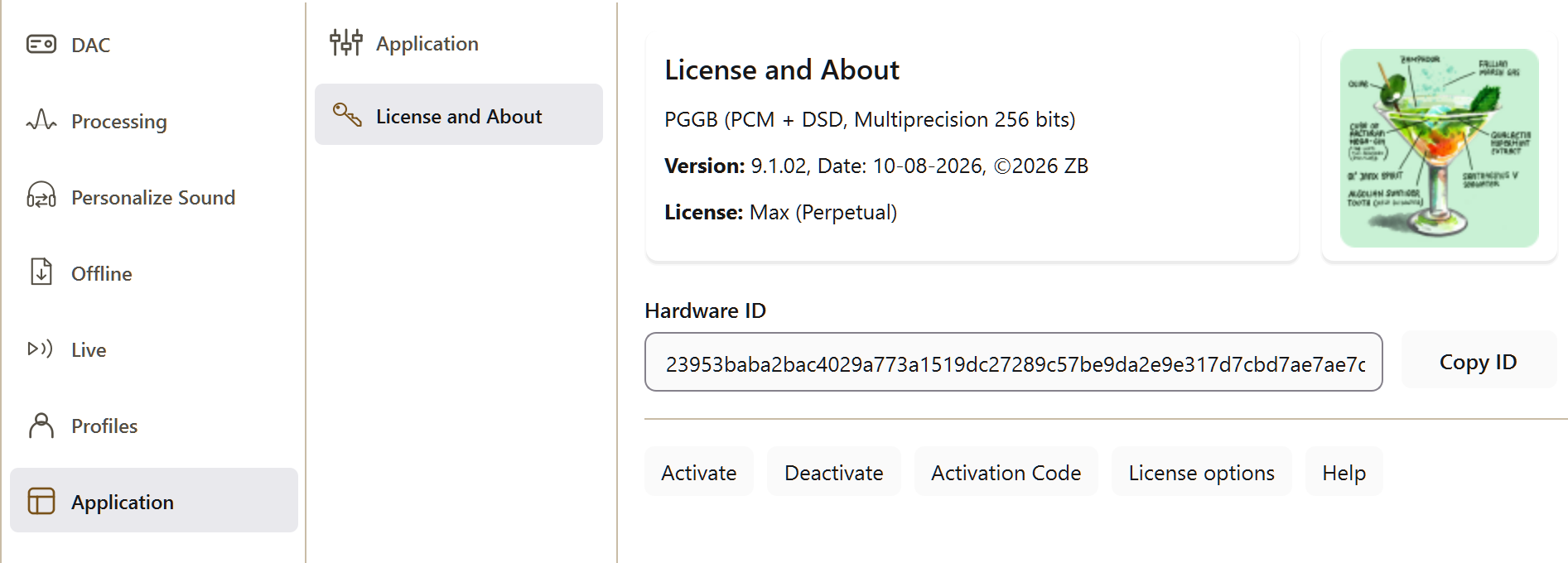
The License and About pane under Settings → Application. On a computer that has not been registered yet, the registration button reads Register.
2. Using an Existing V8 License.
Your existing V8 license also activates V9. Install V9 on the same computer; no new purchase is required.
When V9 first starts with an internet connection, it registers the existing license to the email address used when it was issued. The Register button under Settings → Application → License and About then changes to Activation Code. Click it to view your code. If the computer was offline at first launch, connect it to the internet and click Register later.
Time-limited licenses cannot be registered.
3. Moving a License to a New Computer.
- Install PGGB on the new computer.
- Open Settings → Application → License and About and click Register, then enter your email and activation code.
- Select your license from the list.
- If the license has reached its activation limit, confirm the move to the new computer.
- Restart PGGB.
When you move the activation, the old computer switches to Lite the next time it starts. You do not need access to the old computer to complete the move.
If the new computer already has a registered license, choose Settings → Application → License and About → Activate → Registered License… instead of Register. Enter your email address and activation code, then select the license you want to use.

4. Viewing Your Licenses.
Open Settings → Application → License and About → Activate → My Licenses… to view the licenses on your account. The list shows each tier, the number of activations used and the computers using them.

5. Deactivating a License.
Choose Settings → Application → License and About → Deactivate to release the activation for use on another computer. The computer must be online to complete this step. If it cannot connect, email us for help.
6. Recovering or Resetting an Activation Code.
To view the code stored on a registered computer, click Activation Code under Settings → Application → License and About. If you cannot recover the code or need to reset it, email us. After receiving a replacement, open the same dialog and enter your email address and new code.

7. Activating Without Access to the License Service.
Use a license file if the computer is offline or cannot reach the license service because of network restrictions. This option is available for both new purchases and existing V8 licenses.
- Open Settings → Application → License and About and click Copy ID beside Hardware ID to copy the identifier for this computer to the clipboard.
- Email it to us and we will send you a license file.
- Choose Settings → Application → License and About → Activate → License File…, then select the file.
- Restart PGGB.
After activation, PGGB uses the local license file. An unsuccessful connection to the license service does not by itself deactivate the license. If PGGB reports ‘Running in Lite mode, this license is active on another computer’, the license is assigned elsewhere. Release it on that computer, or follow step 3, Moving a License to a New Computer.
Terms.
- Each license allows one active computer. Activations are tracked separately for each license.
- Personal licenses can be moved to another computer through the activation process described above.
- Online activation uses your registered email address and activation code. If a computer cannot reach the license service, send us its Hardware ID to request a license file.
- All sales are final. Please use the trial to evaluate PGGB before purchasing.