Meet PGGB V9

Meet PGGB V9.
Better sound.
More ways to listen.

Keep the system you love. Discover a new way to listen.

V9 brings PGGB’s processing to live playback, gives you control from your listening seat, and uses less memory when upscaling your library.

The quick look

New in V9, at a glance.

Processing engine
Precision optimized upsampling, on by default, improves sound quality with lower memory use. Read about the PGGB engine ↗
PGGB-Live
Real-time playback to your DAC or a network renderer (beta).
More sources
Play files, use another player through the Bridge, or receive music over UPnP.
PGGB-Remote
Control playback from a browser on your home network.
PGGB-ARC
Crossfeed and head measurements for PCM and DSD; room effects for offline processing.
FLAC output
Lossless compression up to 768 kHz / 32 bits.
Self-service licensing
Activate and move your license using your email address and activation code.
An extra Live license
Included with Pro and Max, at the same tier.
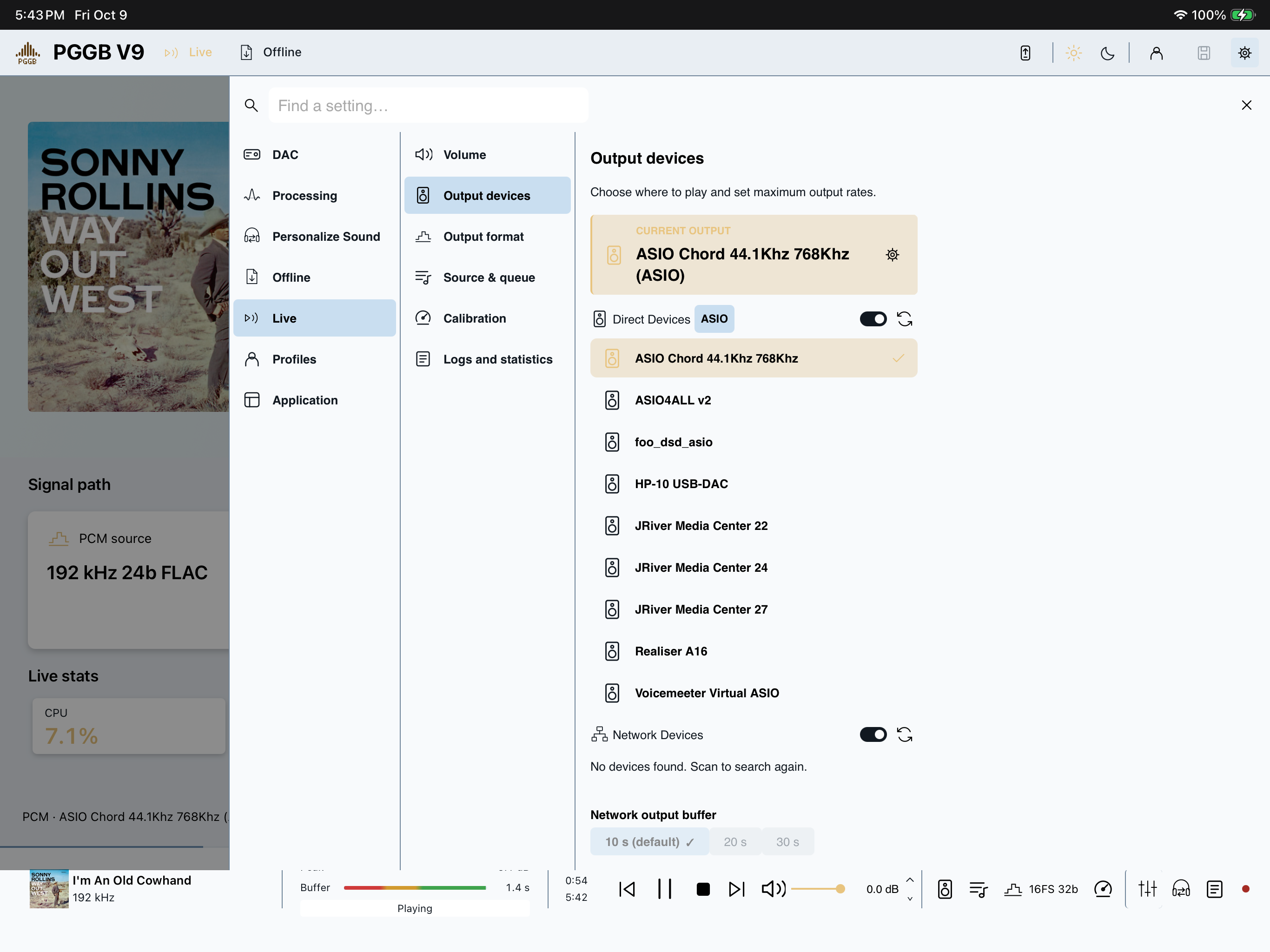
A closer look at the new interface

Familiar interface. Clearer controls.

Choose your mode and theme
Choose between Offline and Live modes, with Light and Dark themes or System for the classic appearance that follows your OS.
Processing speed that is tuned as you listen
In Live mode, PGGB starts with an estimate and refines it as you listen. Calibrate measures the remaining input rates for your current output settings. When all are measured, Recalibrate replaces those results; other output settings keep theirs.
Jump to a favorite passage
Click or drag the Track bar for seekable tracks. Titles, durations and album details make the queue easier to browse.
Stay in control from your phone
Use your phone or tablet to control Live playback, change settings or run an Offline processing job with PGGB-Remote.
Explore the updated Live guide ↗

What changes for you

Processing, playback and licensing changes.

A new engine, more ways to play, and simpler license management.

01 / PROCESSING

New engine, less memory.

The new default engine builds the processing around your chosen precision and sample rates. Memory use no longer grows with track length.

Explore the new engine ↗
02 / LISTENING

PGGB-Live: real-time playback.

Play your files, connect another player through the Bridge, or receive music over UPnP. PGGB-Live sends the result to your DAC or network renderer.

Meet PGGB-Live ↗
03 / LICENSING

Self-service licensing.

Activate with your email and code, or move your license to another computer yourself. Pro and Max also include a separate Live license at the same level.

See how activation works ↗

PGGB-Live + PGGB-Remote

Control PGGB-Live from your phone or tablet.

Choose music, adjust the volume and manage your queue from a browser on your phone or tablet.

Your computer handles the processing. PGGB-Remote puts the playback controls on your home network, with nothing extra to install on your phone.

Listening on headphones? Discover PGGB-ARC ↗

PGGB-Remote in two columns with playback and settings
Two columns on a wider browser, with playback controls along the bottom.

Using PGGB

Mini player and built-in Help.

Keep playback controls nearby.

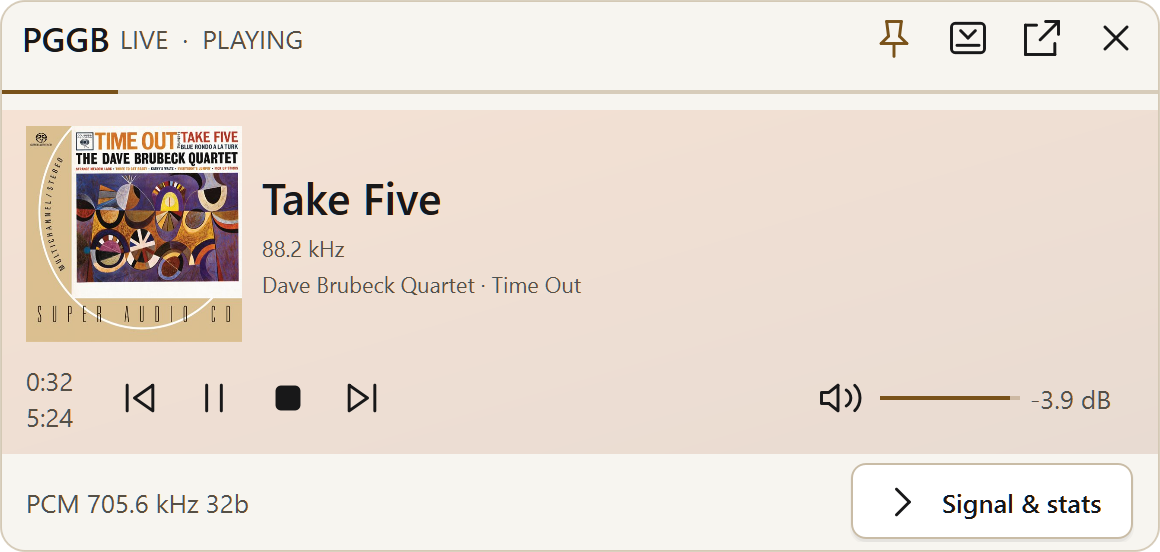
Open mini mode from the button beside Remote. Choose the artwork-focused Card or the shallow Strip, pin it above other windows, and expand Signal & stats when you need more detail.

Explore mini mode ↗
PGGB mini Card playing Take Five
Mini Card.

Help for the control you are using.

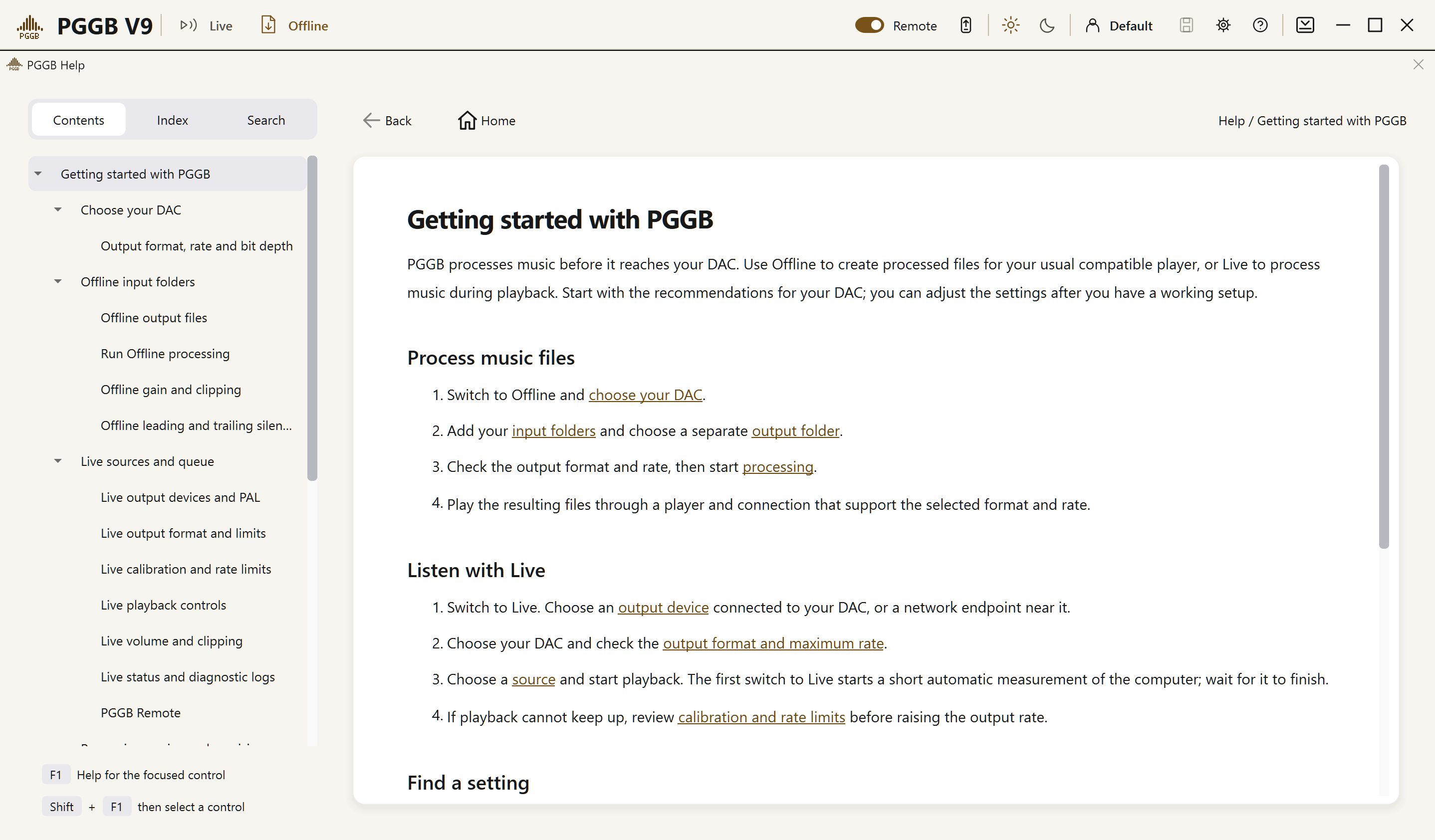
Open Help with the question-mark icon beside Settings. On Windows, F1 opens help for a focused control; Shift+F1 lets you click one. The pages work without an internet connection, and Show me helps you locate a control.

Using built-in Help ↗
PGGB built-in Help
Help in the app.

V9 / Roon

Follow the music from Roon.

Play to the PGGB Bridge, see Roon’s track details and cover art in PGGB, and follow skips, seeks, pauses and stops. Audio still passes through Device Input and remains buffered.

If you rename your Roon zone

When choosing a zone to follow, PGGB first looks for the bridge’s usual name: PGGB Live on Windows or PGGB Bridge on a Mac. For this match, capitalization, spaces and hyphens do not matter.

If you rename the zone, keep “PGGB” in its name: PGGB prefers those zones and follows the one playing if several match. With no “PGGB” name, it follows the only zone or the only one playing; if several are playing and PGGB cannot identify yours, it waits until only one is playing.

If several zones have “PGGB” in their name or an output’s name, and none or more than one is playing, PGGB keeps following the match it has already chosen. If it has not chosen one since starting, it takes the first match Roon sends; this may differ from the order shown in Roon.

The status line shows Following “<zone name>”. Pausing that zone keeps it followed.

Set up PGGB with Roon ↗

Your next step

Start with what you have.

Find the route that matches your current license.

I OWN V8

Install V9.
Keep your tier.

Your license works at no extra cost. Install alongside V8 and let your settings carry over.

V8 upgrade details ↗
I OWN V7

Check your
upgrade options.

See the available upgrade paths and prices, including free-upgrade eligibility for qualifying V7 purchases.

V7 upgrade options ↗
I’M NEW TO PGGB

Start the 30-day trial.

Start with a free 30-day trial. It becomes a perpetual Lite license afterward.

Check downloads ↗

Want more from your existing tier? Compare tier upgrades ↗

More detail

Full release notes.

Explore the full release notes, compare versions and tiers, or search for something specific.

What is new in V9?

V9 is the biggest change to PGGB since it started. Until now PGGB upsampled or downsampled your music to a file and your player took it from there. V9 keeps all of that, and adds a way to hear the same processing while you listen. It also replaces the engine underneath with one that asks far less of your computer.

V9 beta: The Live Edition.

Check download availability and installation instructions: Download PGGB V9.

Every V8 license works in V9 as it is. The upgrade is free and there is nothing to request. V9 installs alongside V8, as a separate program on Windows and a separate app bundle on the Mac, and your settings carry over.

Precision Optimized Upsampling Engine.

V9 refines the upsampling algorithm around the accuracy of PGGB’s math engine. Its filters reach the precision of the calculations within the frequency band being preserved, while handling the upper frequency band separately. That makes high-precision arithmetic central to reconstruction quality. PGGB can calculate at up to 256-bit precision, retaining very small differences with extremely little rounding error before sending the result to your DAC. Listeners describe more natural timbre, clearer instrumental separation and a deeper sense of space. Read about the PGGB engine ↗

The old engine held the whole track in memory at working precision, so long tracks and high DSD rates needed substantial RAM or paging space. The new engine does not: its working memory no longer grows with track length, and paging is rarely needed. For Offline PCM up to 256-bit precision and DSD up to DSD256, start with a 4-core processor and 16 GB RAM. For DSD512, we recommend at least an 8-core processor and 24 GB RAM. DSD1024 and DSD2048 benefit from more cores and 32–64 GB RAM.

The lower memory use does not come from lowering precision. PGGB still uses its high-precision math engine to reconstruct the signal. Precision determines how accurately those calculations can be made; processor performance, including core count and speed, determines how quickly they run.

Open Settings → Processing to choose the engine. Precision optimized is selected when you install PGGB. Select Legacy to use the old engine, which still works as it did. Memory and Paging is under Legacy; those settings do not apply to Precision optimized.

With Precision optimized selected, choose Optimal, Alternate or Minimal. Optimal is the default and the recommended starting point. Alternate keeps a slightly wider frequency range before rolling off. Both match reconstruction accuracy to PGGB’s internal calculation precision within the frequency range they preserve. Minimal applies the least high-frequency filtering and may allow more high-frequency distortion. Compare on familiar music and choose what you prefer; a wider bandwidth is not necessarily better.

PGGB-Live (beta)

PGGB-Audio-Link (PAL) is a small, free program that runs on the computer connected to your DAC. PGGB sends the processed music to it over your home network, so the processing computer can sit away from your listening system and provide isolation.

PAL is the preferred network endpoint where available. It provides a better playback experience by allowing PGGB to control the upsampled music all the way to your DAC. Use a compatible UPnP endpoint when PAL is not an option. PAL setup instructions.

Choosing how playback starts

Fast start is on by default. When it is off, PGGB waits for the first pieces of processed audio before starting. Playback then behaves the same as with Fast start on. Seeking, the next track and Play from a UPnP control point still start quickly.

On an Intel Mac, Live outputs PCM and Fast start is unavailable. DSD source files can play in Bypass or be converted to PCM. Offline DSD output is unaffected.

Fast start in the Live guide ↗

PGGB-Live does the upsampling while you listen and sends it straight to your DAC, or over the network to a renderer. You can play your own files, or leave the player you already use in charge and let it play into PGGB through a sound device V9 installs called the PGGB Bridge. PGGB also shows up as a UPnP renderer, so a control point can send music to it.

For a local DAC, output is WASAPI or ASIO on Windows and Core Audio on Mac. For network output, use PAL when available, with UPnP as the fallback. DSD is sent as Native or DoP where the endpoint supports it. The four output modes are Bypass, Bypass with level, PCM and DSD. With DSD output, a new setting starts playing while PGGB measures it during the first minutes of playback. The same applies to PCM on the Precision Optimized Engine at 107, 128 or 256 Bit and 176.4 kHz or higher, with Dither Only off. On the first play of an unmeasured setting, the measured speed can take a few minutes to appear on the strip. If you stop before it appears, PGGB saves any result it already has. If there is no result yet, the next Play measures the setting again. Device Input still measures before playback. Other PCM settings start from an estimate when one is available; otherwise PGGB measures before the music starts. Use Calibrate for a measured result.

It is marked beta because real-time processing depends far more on your particular machine than offline processing ever did. The PGGB-Live guide covers all of it.

Current beta: endpoint and input updates

These changes are in beta testing.

  • PGGB’s UPnP input now advertises the full input range to control apps: PCM at 1×–64× in both the 44.1 and 48 kHz families, and DSD64–DSD2048. This has been checked on the bench; testing with control apps is still pending. Advertised input rates do not guarantee that your computer can process them in real time or that your DAC accepts the chosen output.
  • The fix for ticking when a DSD source is paused has passed bench checks for PAL and a locally connected DAC. Listening checks are still pending.
  • The PAL endpoint is installed and running on an AudioLinux system and reports the connected DAC’s PCM and DSD rates. Field listening is still pending.
  • Mac PGGB Bridge driver 1.2.3 is being tested for a brief repeat of the player’s last audio when playback stops. The reported repeat did not occur during the test runs, so the fix is not yet confirmed.

PGGB-Remote.

PGGB puts a small web page on your home network so you can run it from wherever you listen. There is nothing to install on the phone. Open the address in a browser, and if you use it often, add it to your home screen. You get now playing with artwork, transport and volume, your music folders to browse and queue from, and the configuration sheet.

The Process view adds Offline file processing. Set the input and output folders on the PGGB computer, then start, pause or stop the job and follow its progress. Offline processing in Remote.

PGGB-ARC.

PGGB-ARC (Anthropometric Room and Crossfeed) makes music easier to listen to on headphones, and it works with both PCM and DSD. Music is mixed on loudspeakers, where each ear hears a little of both. Headphones do not work that way, so the music ends up feeling like it is inside your head. Crossfeed softens that, and an optional room puts the music in a space instead of in a vacuum.

For DSD source files, ARC requires the Precision optimized engine. PCM source files support ARC with either engine.

You can set your own head measurements, the speaker angle, and brightness compensation, and pick a room from Studio, Living Room or Concert Hall. The room part is offline only. Crossfeed also applies to live playback. This is not a speaker simulator and the goal is a modest one. The PGGB-ARC guide goes through every control.

Licensing Is Now Self-Service.

Your email address and an activation code are all you need. There is no Hardware ID to look up and no license file to install. Moving to a new computer is something you now do yourself: install PGGB, enter your email and code, and the old computer switches to Lite the next time it starts. You do not need to contact support, and you do not need to turn the old machine on.

Computers that cannot reach the license service are still covered by a license file, and that path has not changed. See Activating your license.

A Live License With Pro and Max.

Pro and Max now each include a second license at no cost, a Live license at the same level. It covers PGGB-Live only, with no offline processing, so you can put it on the machine connected to your system and keep the full license on the machine you remaster with. It cannot be bought on its own and there is nothing to pay or request.

Release Notes.

PGGB 9.1.07

22 October 2026

PGGB 9.1.07 mainly fixes playback problems. With Files and Network Renderer, new DSD settings and supported PCM settings on the Precision Optimized Engine can start playing while PGGB measures them. Profiles now save Live settings too. PAL has a smoother Stop with DSD output and keeps the DAC ready briefly after native DSD playback. There are also fixes for demanding settings, control points, long pauses and network streams. The changes are listed below.

PAL OS 9.1.07 for Raspberry Pi 4 and 5 and Linux PAL release 5 include the updated endpoint. Update them to get the new Stop for DSD output and native DSD DAC hold.

Live playback

  • Start listening while PGGB measures. With Files and Network Renderer, an unmeasured DSD setting starts playing while PGGB measures it during the first minutes of playback. The same applies to PCM on the Precision Optimized Engine at 107, 128 or 256 Bit and output rates of 176.4 kHz or higher, with Dither Only off. Stopping, pausing, seeking, starting a new track, changing the volume or muting restarts the measurement. Device Input still measures before playback. Other PCM settings start from an estimate when one is available; otherwise PGGB measures before playback starts. If PGGB falls behind during the measurement, it records this in the log and measures that setting before playback the next time you press Play in the same session.
  • Clearer guidance with Override limits off. PGGB explains which rates are not yet available and why. For example, DSD512 and DSD1024 may need Calibrate to confirm that this computer can process them in real time. To try one before measuring it, turn on Override limits.
  • A short fade when you stop DSD playback. With DSD output on a local DAC using ASIO or WASAPI on Windows, or the Mac’s audio outputs, Stop lets the music continue briefly and fade out instead of cutting it off. DSD playback also fades out at Stop on UPnP renderers. PCM output stops as before.
  • More processing headroom as music plays. Once enough music is ready ahead of the DAC, the Precision Optimized Engine works in larger pieces, growing from 2 to 8 seconds. This leaves more headroom at demanding settings. If the computer slows down, the pieces become smaller again.
  • Profiles now include Live settings. A saved profile includes the output type and device, PAL address, PCM or DSD output, rate limits, network buffer, input mode and input buffer, Live Configure values, and Volume.
  • Load a profile while listening. It waits until playback stops before applying. If you adjust Volume meanwhile, the profile still waits, but its saved Volume is left out. If its output device is unavailable, Live keeps the current output and explains why in the Live log. Profiles saved before 9.1.07 leave Live settings unchanged.

PGGB-Audio-Link (PAL)

  • A smoother Stop with DSD output. With the 9.1.07 endpoint, Stop lets the music play out briefly and end on silence to avoid a click. PCM output stops as before.
  • Keep the DAC ready after native DSD. The 9.1.07 endpoint keeps the DAC open for 10 seconds after a native DSD track. During that time, Next, Previous, or Stop followed by Play can reuse the same DAC in the same native DSD format without waiting for it to close and reopen. PCM and DoP do not use this hold.

Network Renderer and UPnP

  • If a renderer cannot play a gapless stream, PGGB retries once, then plays the tracks separately. A one-time message names the renderer and explains the change.
  • Resume after a long pause. If a network renderer has let go of the stream and does not resume it within 5 seconds, PGGB sends it a fresh stream. Playback continues a little further on than where it paused. Returning to the exact paused position is planned for a later release.
  • Device Input with more network renderers. If a renderer cannot play Device Input as one continuous stream, PGGB sends the audio in long pieces. Receivers that accept the next piece in advance join without a gap and skip nothing. If the receiver also refuses the next piece in advance, each join adds a short silence and skips the same duration of music, so these joins do not increase the delay behind the live input.
  • Identify each PGGB computer in your control point. Each appears as "PGGB-Live (computer name)", so two computers no longer share one entry.

Appearance

  • Message and input boxes now use the same styling as Settings.
  • The Remote's track progress bar now uses the same gold as the app.
  • In a desktop browser, the Remote's main panel now matches the app. Startup messages such as Calibrating and Buffering appear only in the bottom status bar. The bottom right of the main panel shows the LIVE line, chosen output and device. The phone layout is unchanged.

Licences

  • Bypass is unlimited. Bypass and Bypass + Level have no time limit with any licence. With Trial, Lite or an expired licence, the licence line reads: "DSD and PCM above 107 Bit: 30 min per run; Bypass unlimited".

Fixed since 9.1.06

  • A click at the start of DSD playback.
  • UPnP: a very long track could stop some renderers or make them crash. It now reaches the renderer in parts.
  • Network Renderer: when a control point sent its next track late, the track could end with a gap or a short dropout, or the next track did not join.
  • Network Renderer: a control point's next track could be lost when it arrived while PGGB restarted the stream, for example after a seek.
  • Network Renderer: after a long pause, a track streamed from a server could end early.
  • UPnP: a renderer that reconnected during DSD (DoP) playback could get silence.
  • A stream that would not open could freeze PGGB. It now gives up within about 20 seconds and says why.
  • Device Input with a UPnP renderer: each change of sample rate by the player could mean 30 to 40 seconds of silence.
  • Faint ticks in DSD while PGGB waited for the player's music.
  • A false "not able to keep up" warning, and a short skip, after a start that had to wait.
  • Pressing Play within about half a second of changing a setting restarted the music once.
  • A FLAC file containing a second complete FLAC stream would not play, either locally or over the network.
  • When a track ended before its stated length, the log did not explain why. It now records the reason.
  • At very demanding settings, or when a source sent music in bursts at the start, playback could dip briefly 13 to 26 seconds after the first sound.
  • With linear-phase EQ at a demanding DSD setting, playback from a file could skip about 3.5 seconds of music within its first second.
  • In the new layout, Offline could show a second "Invalid configuration settings" message even though its banner already explained the problem.
  • A track without tags could appear without a title on a network renderer. It now shows the file name.
  • The Remote did not receive the cover shown in the app for tracks sent by a control point, including Qobuz and Tidal tracks. It now shows the same cover as the app.
  • In Offline, Lite did not have the same rights as an expired licence, although its format list indicated that it did. The rights now match.
  • UPnP with Bypass: playback could fail to start on some renderers, ending after about a minute with "Device start failed." PGGB now sends the first 0.2 seconds of audio before asking the renderer to play, as it already does with processing on. This changes when the audio is sent, not the audio itself; Bypass remains bit-perfect. The fix applies to PCM and DSD with Bypass or Bypass + Level, and to resuming DSD after a pause.
  • Remote: while PGGB measured before playback, the Remote could stay at "Buffering... 0%" instead of showing the calibration progress. It now follows the app's startup and measurement status about once a second.
Playback and compatibility notes
  • Live needs fresh measurements. Processing speed has changed, so PGGB does not reuse measurements from 9.1.06. Keep Override limits on to make every rate available to try. With Files and Network Renderer, new DSD settings and eligible PCM settings on the Precision Optimized Engine are measured during the first minutes of playback. The PCM conditions are listed above. Device Input still measures first. Stopping, pausing, seeking, starting a new track, changing the volume or muting restarts the measurement. On a fast computer, playback may produce only an estimate, shown as “est.” beside XRT. Use Calibrate for an exact measurement.
  • With Override limits off, DSD512 and DSD1024 come back once Calibrate has measured them on this computer in real time.
  • Stop takes a moment longer on a local DAC: the music runs on for up to about 0.7 seconds at DSD512 before it fades.
  • PAL holds the DAC after native DSD. On Windows with ASIO, another application may have to wait up to about 18 seconds after the last native DSD track: the 10-second hold, followed by a quiet close that takes about 8 seconds to avoid a pop. Play during that close can wait up to 8 seconds, and changing format also waits for the close. Quitting PAL starts closing the DAC immediately but does not skip the quiet close. These close-time figures apply only to Windows with ASIO.
  • Use the current PGGB version on every computer that connects to the new PAL endpoint. An older PGGB version may fail to start playback in a different format while the DAC is being held open after native DSD.
  • Stopping native DSD early over PGGB-Audio-Link. At DSD64 and DSD128, pressing Stop in the first couple of seconds now prepares clean silence for the 10-second DAC hold. Preparing it adds a little time before the music fades: about 0.3 seconds at DSD64 and about 0.6 seconds at DSD128 on an Intel i9-9900K; about 0.45 seconds at DSD128 on an Apple M5 Mac. At DSD256 and above, an early Stop adds no extra delay, but the silence during the hold can tick. Stopping later in a track is unchanged and adds no extra delay.

Version V9 beta: The Live Edition (PGGB Plus)

  • SQ Changes: the Precision Optimized Upsampling Engine is the new default, and listeners have reported the best subjective quality with it
  • Features:
    • New Precision Optimized Upsampling Engine, on by default, with far lower memory use and speed tied to processor cores rather than paging
    • Filter Choice: Optimal (default), Alternate and Minimal
    • PGGB-Live real-time playback to a DAC or a network renderer (beta)
    • PGGB Bridge, a sound device that lets any player feed PGGB
    • UPnP renderer support, in and out
    • PGGB-Remote phone and tablet control over your network
    • PGGB-ARC crossfeed, anthropometry and room, for PCM and DSD
    • Self-service licensing with an email address and activation code, including moving a license to another computer
    • A Live license included with Pro and Max

Upgrades from V8.

There are none to buy. Every V8 license activates V9 at the same tier. The first time V9 starts with an internet connection it registers your license to the email it was issued to, and from then on the Register button under Settings → Application → License and About reads Activation Code and shows your code whenever you need it.

If you are new to PGGB, there is still a free 30-day trial that converts to a perpetual Lite license. The tiers are laid out on the product page.

FLAC output and versioned reports.

V9 supports lossless FLAC output up to 768 kHz and 32 bits. Choose .flac under Settings → Offline → Output files → Output file format. For higher rates, use WAV or RF64. For DSD, WavPack (.wv) is lossless; .dsf is uncompressed.

V9 log files are pggb_debug_v9.log and pggb_album_debug_v9.log. Analysis reports are pggb_album_analysis_v9.csv and pggb_batch_analysis_v9.csv. The version suffix keeps V8 and V9 reports separate. Enable logging under Process → Processing; album logs are saved in the output folders. For live playback, enable Log diagnostics under Settings → Live → Logs and statistics.

Installing alongside V8.

V9 installs as a separate application on Windows and Mac, with your settings and license carried over. You can try it before uninstalling V8.

On Windows, the installer creates a PGGB V9 Start menu entry. A desktop shortcut is optional and is not selected by default. Leave PGGB-Live ASIO bridge selected to receive audio from an ASIO-compatible player through Device Input. PGGB Remote is included. On Mac, use the .pkg installer for your processor; it installs PGGB, the Bridge audio driver and PGGB Remote. On first use of Device Input, allow the macOS audio-input permission request so PGGB can receive audio through the Bridge.

Check downloads and installation instructions ↗

Upgrading from V7.

V7 upgrades now provide V9 at the same upgrade prices previously offered for V8. An existing V7 license of the corresponding tier is required.

Existing licenseV9 tierUpgrade price (USD)Upgrade
V7 PlusPlus$150Upgrade to Plus →
V7 MaxPro$150Upgrade to Pro →
V7 MaxMax$300Upgrade to Max →

Your activation code is emailed automatically. Your existing V7 license may be checked after purchase.

Purchased or upgraded a V7 license after January 1, 2025? You qualify for a free upgrade to the same tier. Email your name and Hardware ID from Settings → Application → License and About, with the subject Free Upgrade Request.

Request your free upgrade ↗ · Review V7 upgrade options ↗

Moving to a higher tier.

With an existing V8 or V9 license, you can move from Plus to Pro, Plus to Max, or Pro to Max by paying the difference. Upgrades apply automatically and your existing activation code continues to work. A version upgrade from V8 to V9 is free; a move to a higher tier is a separate purchase.

Review tier upgrades and prices ↗

What is new in V9, compared with V7.

The prose above covers what V9 adds to V8. If you are coming from V7 or earlier, this table is the fuller picture, since it also carries the speed and modulator work that arrived in V8.

Feature
V7
V9
New
Platform support Windows, Intel Mac, Apple Silicon (Rosetta) Windows, Intel Mac, Apple Silicon (native)
DSD rates DSD128–DSD2048 DSD64–DSD2048
Phone and tablet control — PGGB-Remote, a web page served on your network
Moving to a new computer Email us for a deactivation code Self-service, using your email and activation code
Upgrade your license

* 9th order modulator available only for DSD512 and higher rates.
** Quantization noise in the audible band while using the highest order modulators available for the rate.

Comparing V9 Tiers.

Limited Trial
Free
Lite
Free
Plus
$350
Pro
$650
Max
$1050
PCM up to 107-bit Unlimited Unlimited Unlimited Unlimited Unlimited
PCM 128-bit 2 tracks Not included Unlimited Unlimited Unlimited
PCM 256-bit 2 tracks Not included 2 tracks Unlimited Unlimited
DSD64–DSD256 2 tracks Not included Unlimited Unlimited Unlimited
DSD512–DSD2048 2 tracks Not included 2 tracks 2 tracks Unlimited
PGGB-Live streaming Unlimited at 107-bit PCM † Unlimited at 107-bit PCM † Unlimited to 128-bit PCM and DSD256 † Unlimited PCM and DSD to DSD256 † Unlimited
Additional Live license Not included Not included Not included Included Included
Installs PC/Mac PC/Mac 1 PC/Mac 1 PC/Mac 1 PC/Mac
License validity 30 days Perpetual Perpetual Perpetual Perpetual
Support Forum/Email Forum Forum/Email Forum/Email Forum/Email
Free upgrades — — 1 year* 1 year* 1 year*
Commercial use Not included Not included Not included Not included Not included
Download Automatic Buy $350 Buy $650 Buy $1050

* If no major updates within first year, free upgrade until next major version.
† Anything inside your tier's range, shown above, streams with no time limit. You can play something above your range as well, but only for 30 minutes each time you run PGGB. That half hour counts playing time, so pausing does not use it up, and tracks inside your range never draw on it. When it runs out the stream stops and PGGB says: 'The 30-minute streaming limit for this license is used up for this app run. Restart the app to stream again, or upgrade for unlimited streaming.' Restart and you get another 30 minutes.

What are you looking for?