Why choose Live.
- Listen to your own files or a streaming service through a compatible player.
- Avoid storing a second, upsampled copy of your library.
- Try different output settings without preparing new files each time.
PGGB / Live
Play your files directly or bring audio from a compatible player or network source. PGGB-Live processes it on your computer and sends it to your DAC.
Live / 01
PGGB-Live processes the incoming audio as it plays. There is no library of upsampled files to prepare first. Get started
Live / 02
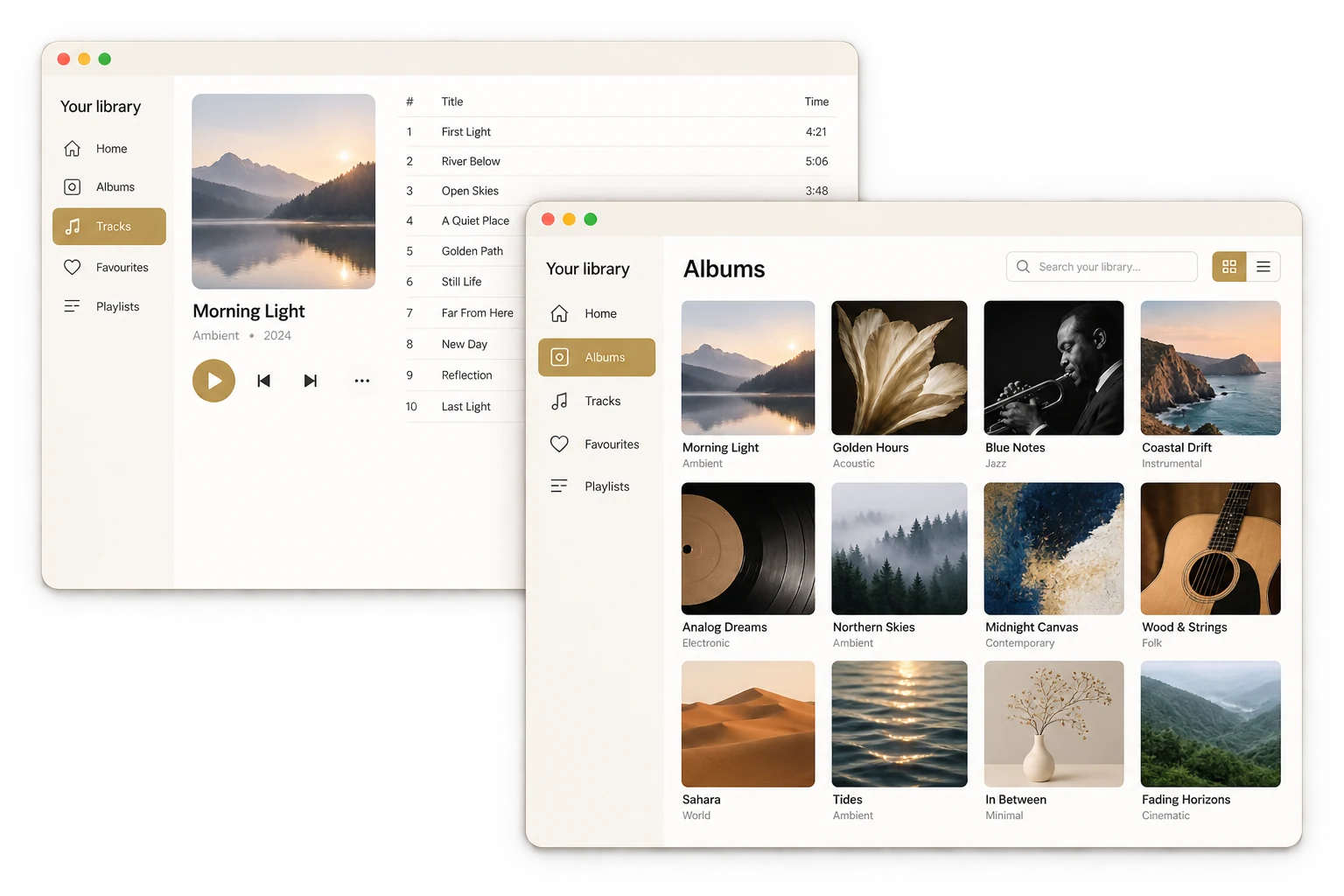
Play your own files directly, or send music from a compatible player or UPnP source. Qobuz and TIDAL can be used through a supported player or connection.
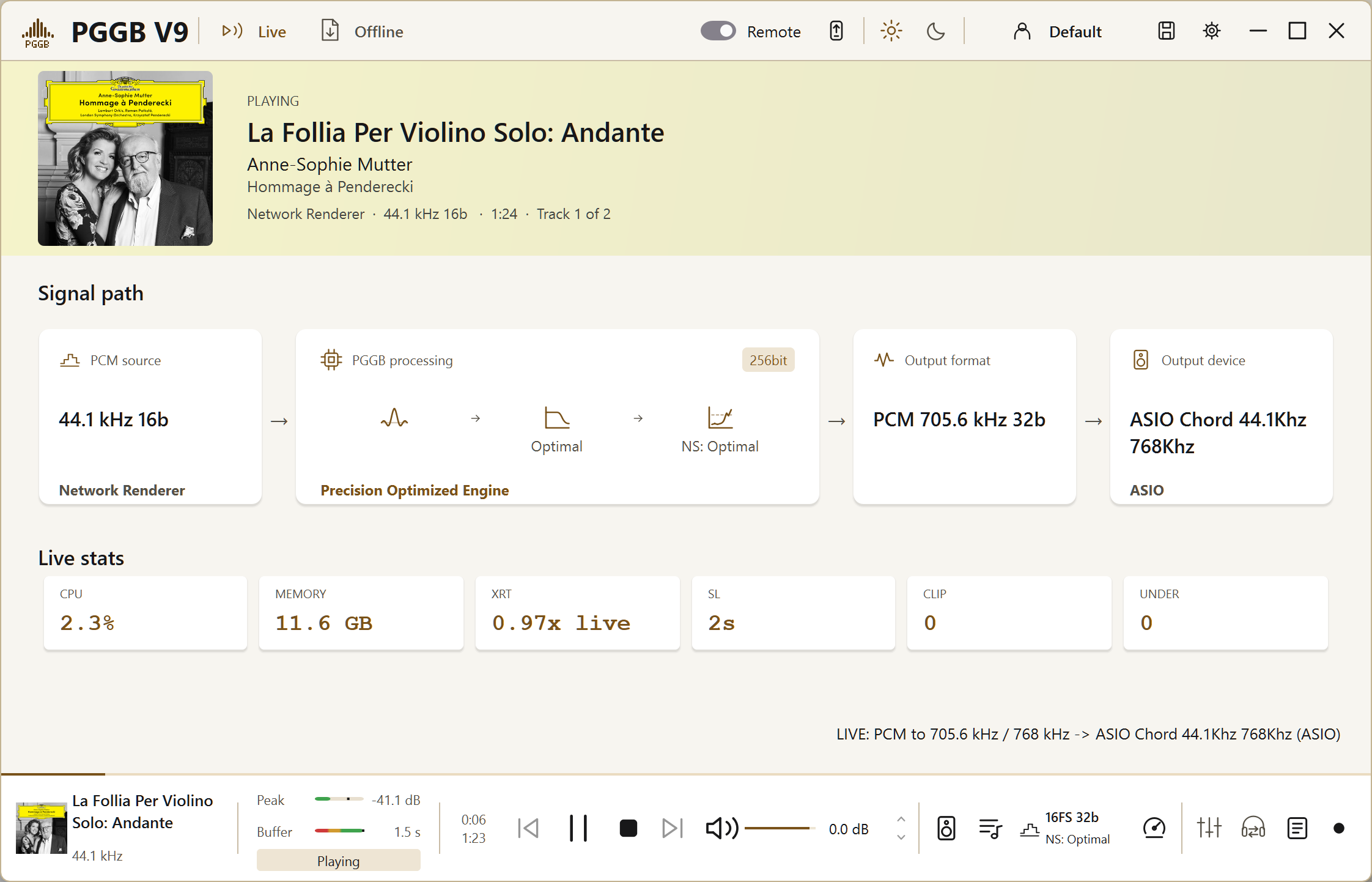
PGGB upsamples the music during playback, so you do not need to save a processed copy. The music still comes from your source.
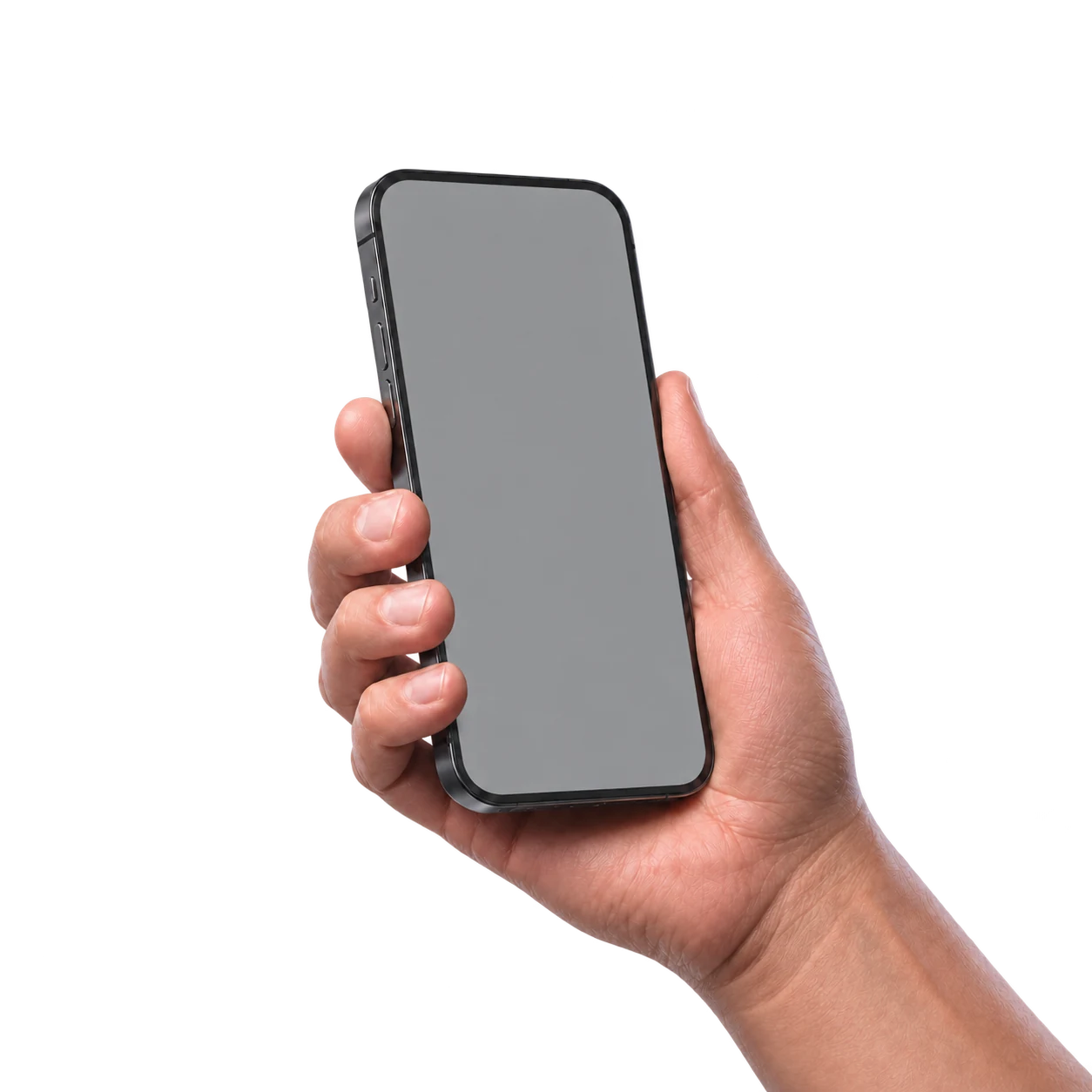

A phone, tablet or another computer on the same home network can control PGGB-Live from a browser. No separate phone app is needed.
Choose tracks, manage the queue and control playback from your seat. The PGGB computer still processes the music and sends it to your DAC.
Remote is optional; you can also control everything at the PGGB computer.
Live / 03
Add tracks to the PGGB-Live queue and play them directly. This is a simple place to begin when you already have music files on your computer.
Send audio from a compatible player to the PGGB Bridge. On Windows, the player must support ASIO and output to the PGGB Bridge; on a Mac, it outputs to the PGGB Bridge audio device.
Use Follow Roon to bring the current track and cover art into PGGB while Roon sends the audio through the Bridge.
If you rename the Roon zone, keep “PGGB” in its name to help PGGB identify it. With several matching zones, PGGB follows the only one playing; otherwise it keeps its current match, or takes the first Roon sends if none is followed yet.
PGGB with Roon ↗PGGB appears on your network as a UPnP renderer, so a UPnP control point can send music to it. A network setup can place the music source, processing computer and playback endpoint on different devices.
Qobuz and TIDAL can stream to PGGB through a compatible player. Get started shows the options for your operating system and connection.
Live / 04
Source sets the input; Session sets the output.
Choose Live in the header. Under Settings → Live → Source and queue, choose how audio enters PGGB: files, device input or network.
Session selects the output connection and endpoint. A directly connected DAC uses ASIO or WASAPI on Windows, or Core Audio on Mac. For a network endpoint, choose PAL when available; use UPnP when PAL is not an option.
Choose a PCM or DSD output and rate supported by the whole path, including the driver and any DSD transport. Use Settings → Processing for processing options and Settings → Live for the output device, output format and calibration.
PGGB-Audio-Link (PAL) is a small, free program that runs on the computer connected to your DAC. PGGB sends the processed music to it over your home network, so the processing computer can sit away from your listening system and provide isolation.
PAL is the preferred network endpoint where available. It provides a better playback experience by allowing PGGB to control the upsampled music all the way to your DAC. Use a compatible UPnP endpoint when PAL is not an option.
PAL supports Windows, Mac, Debian, Ubuntu, Raspberry Pi OS, Fedora and Arch Linux.
PAL sends the DAC’s supported rates back to PGGB and supports native DSD where the endpoint and DAC allow it.
Set up PGGB-Audio-Link ↗Live / 05
Your computer needs to finish processing each part of the music in time for playback.
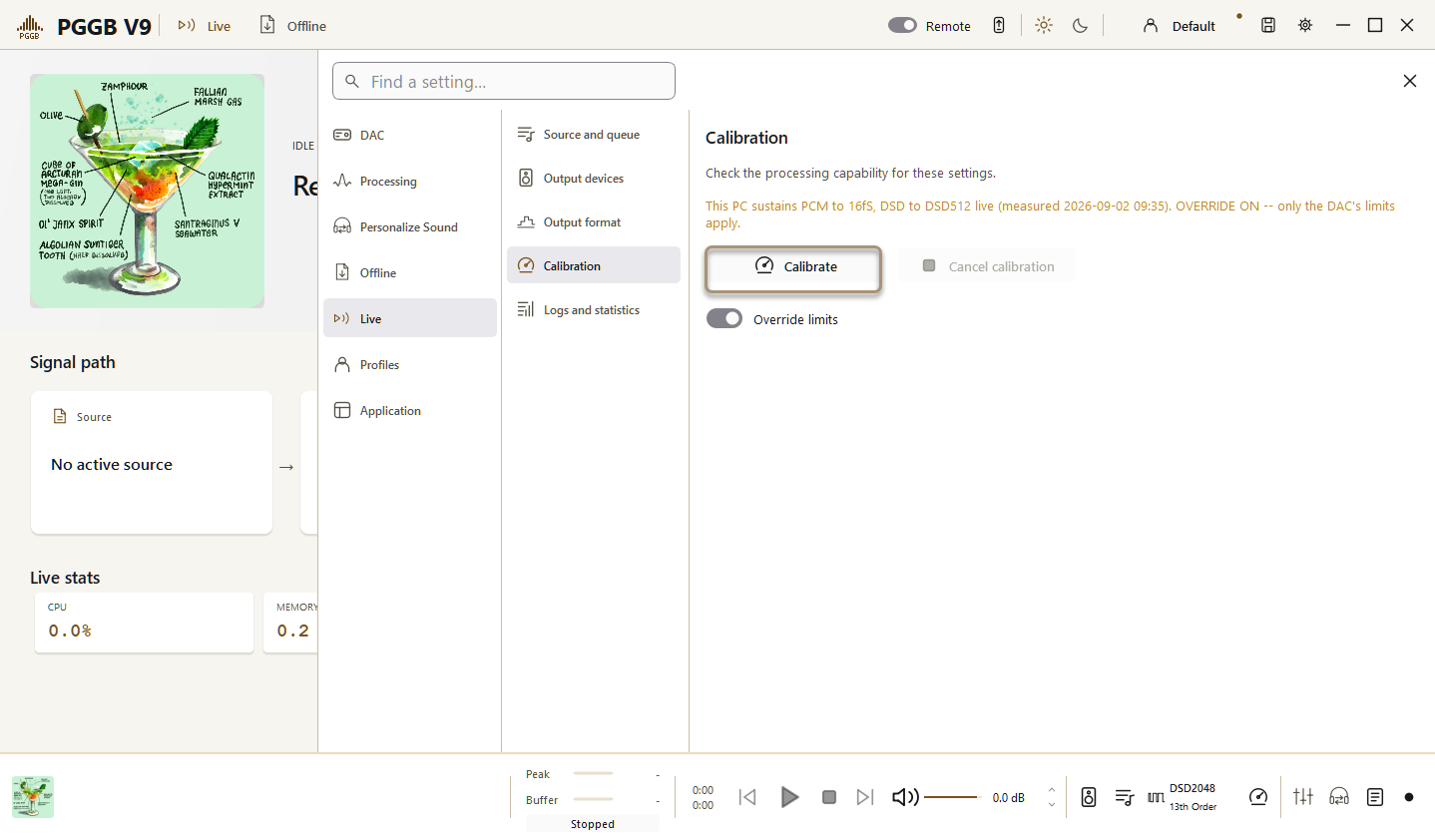
Choose your source and output settings, then use Calibrate. It measures input rates that have not yet been measured for those output settings. Once all are measured, use Calibrate again to replace their results; its confirmation and hover text say Recalibrate. Results for other output settings stay saved.
If a setting is too demanding, reduce the output rate or, for PCM, processing precision, then calibrate again. Changes to the processing configuration can change the available performance.
Begin with one familiar track and confirm steady playback before exploring more demanding settings.
Live / 06
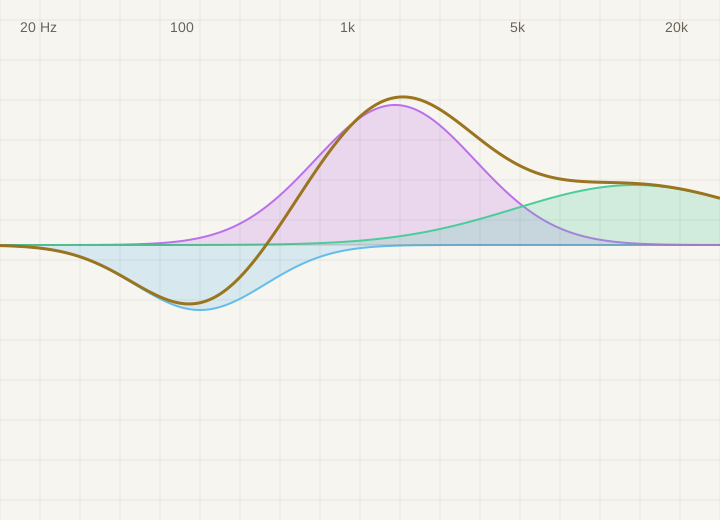

Adjust bass, midrange or any other frequency band.
Equalization changes the balance of bass, midrange and treble. You can add warmth to lean-sounding headphones, reduce excessive brightness or tame a bass peak caused by your speakers and room.
Make a broad, gentle adjustment or target a narrow frequency range without turning down the whole track. PGGB supports parametric and convolution EQ in Offline and Live, including correction profiles you already use.
If a familiar voice sounds thin or bass overwhelms the music, PGGB-EQ lets you adjust the balance while keeping the sound clear and natural.

Parametric EQ lets you choose which frequency to adjust, how much to raise or lower it, and how broad the adjustment should be. Use it for small changes to taste or a headphone correction profile.
Convolution EQ uses a prepared filter that can contain multiple adjustments. Supply a filter made for your headphones or measured for your speakers and room, and PGGB applies it during processing.


Crossfeed lets each ear hear a little of both channels.
With speakers, sound from each speaker reaches both ears. Headphones usually keep the left and right channels separate. Crossfeed mixes a small, delayed and filtered amount of the opposite channel into each ear.
PGGB-ARC models some of this interaction, including the time sound takes to travel around your head and how it changes on the way. It can make the channels feel more connected while preserving stereo space.
In an older stereo recording, the singer may be entirely in one ear and the instruments in the other. Crossfeed can soften that separation and make the performance sound more cohesive.

A small amount softens hard left/right separation. Increasing it sends more of the opposite channel to each ear. The aim is comfortable stereo listening, rather than a mono blend.
Your head and shoulder dimensions affect how sound reaches your ears. ARC can use personal measurements to refine its crossfeed model, and its virtual speaker angle changes the listening perspective.
Choose how to handle the highest frequencies.
Optimal and Alternate are choices within PGGB’s Precision Optimized Upsampling Engine. Both match reconstruction accuracy to PGGB’s internal calculation precision within the frequency range they preserve.
Alternate keeps a slightly wider frequency range before rolling off. Start with Optimal, then compare on familiar music. Minimal applies the least high-frequency filtering and may allow more high-frequency distortion. The choice depends on your system and listening preferences.
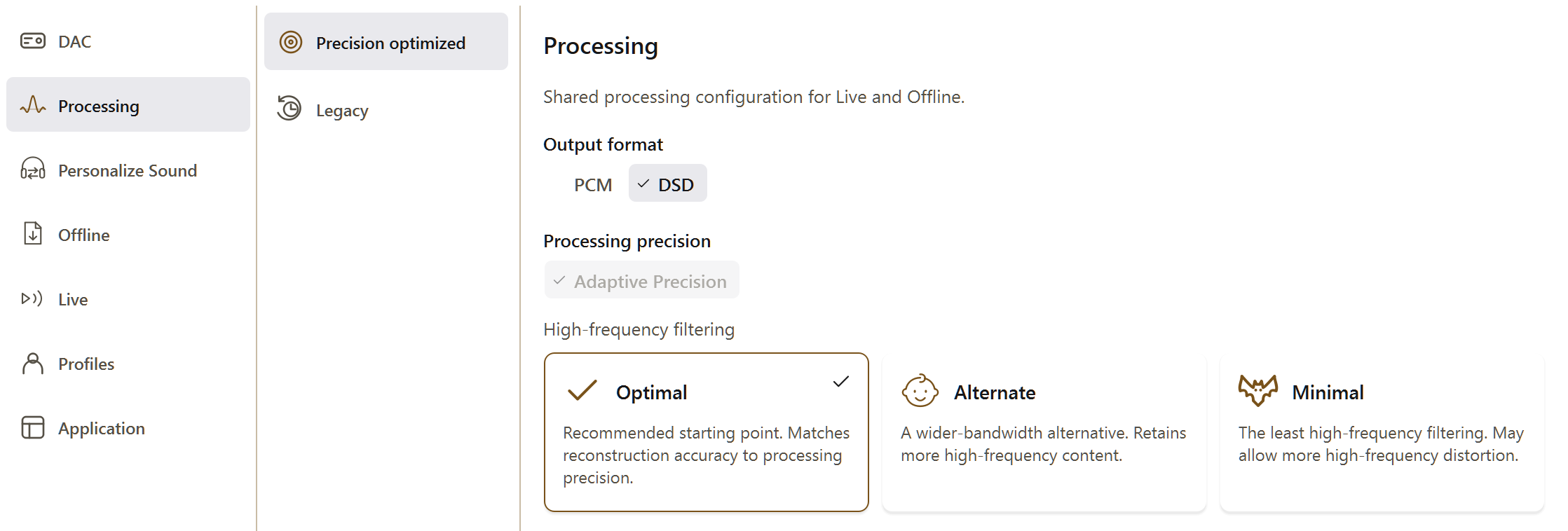
The default and recommended starting point. Leave it selected for your first listen.
The wider-bandwidth alternative. It retains more high-frequency content; a wider bandwidth does not automatically mean a better listening result.
The least high-frequency filtering. It may allow more high-frequency distortion.
Get started saves your platform, source, DAC and optional features, then shows how to apply them in PGGB.
Live / 07
For local files, choose a track in PGGB-Live and press Play. For a player or network source, follow the setup steps for that source and use Auto-play where appropriate. Check the output format and rate while listening.
Enable PGGB Remote and open its link on a phone, tablet or laptop on the same home network. The browser controls playback; the PGGB computer still processes the audio.