PGGB / foobar2000 guide
Keep your music in foobar2000, play through PGGB.
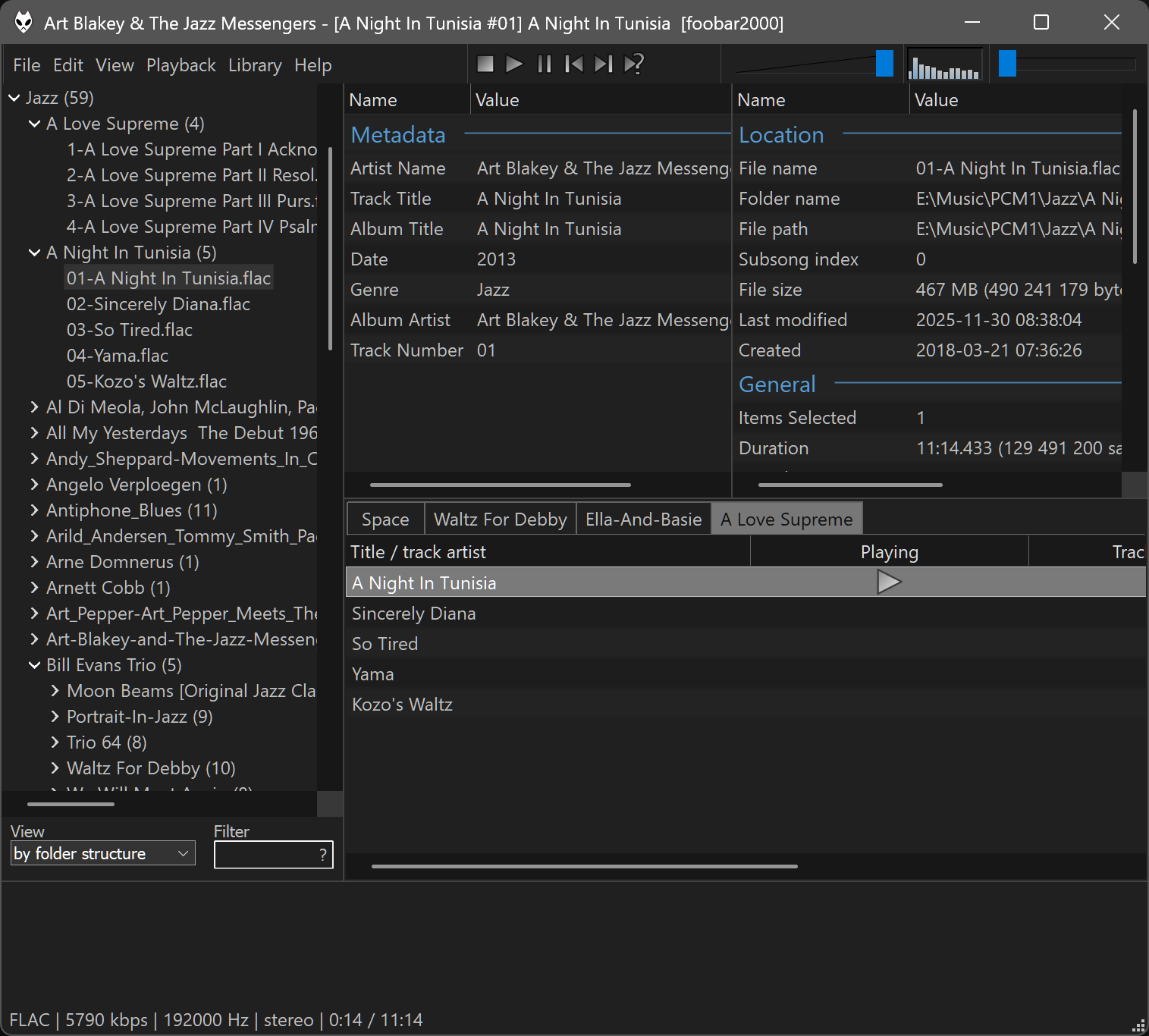
Choose your music in foobar2000. PGGB processes the audio and follows the track you are listening to.
Follow foobar2000 brings track details and cover art into PGGB and PGGB-Remote. Use Play, Pause, Previous and Next in PGGB to control foobar2000.
Use Device Input on the same Windows computer, or send audio over the network from foobar2000 on Windows to PGGB on Windows or Mac.
foobar2000 / 01
Install the player components.
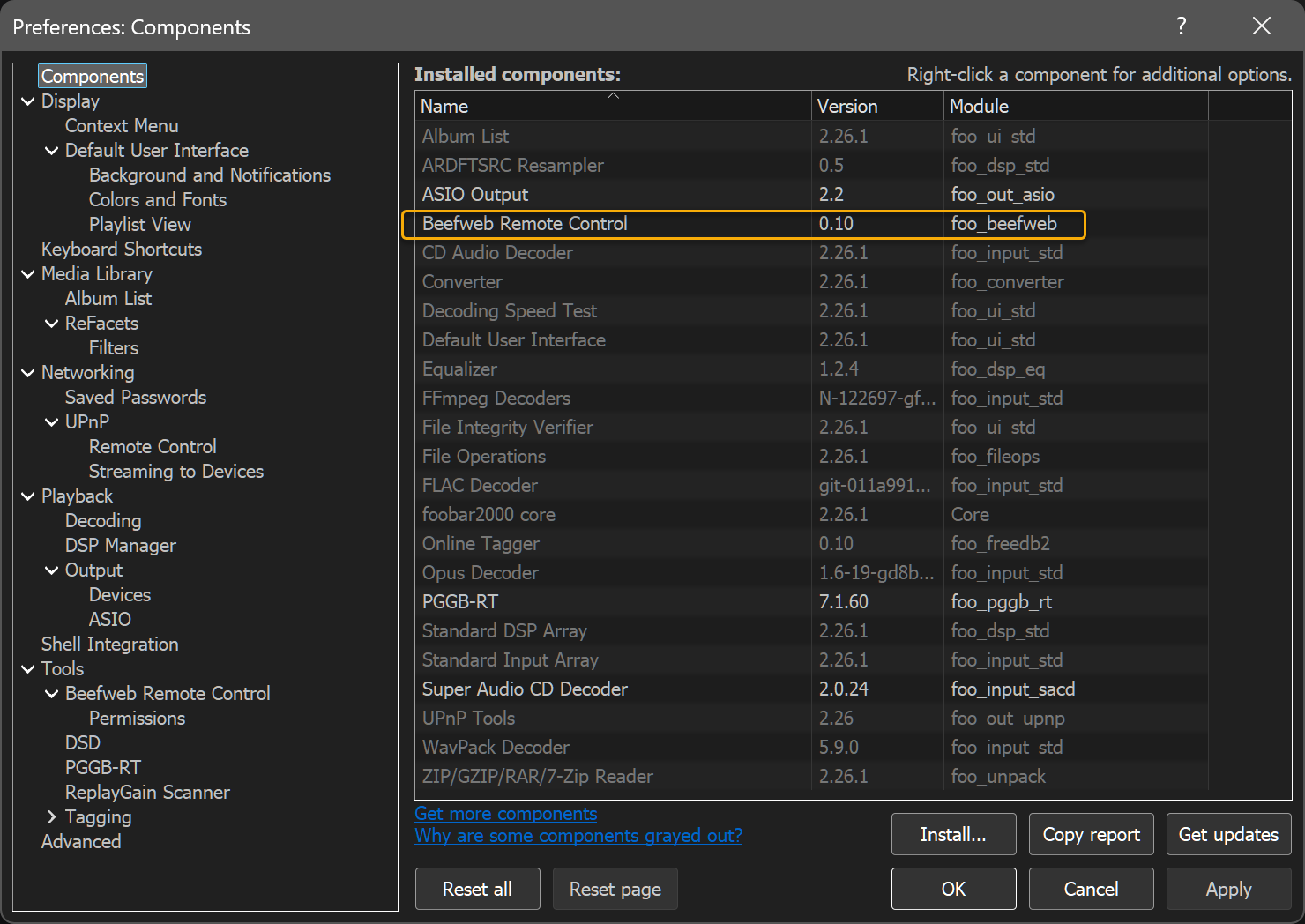
- In foobar2000, open File → Preferences → Components. Install foo_beefweb for track information and playback controls. Install foo_out_asio for Device Input, or foo_out_upnp for network playback.
foobar2000 / beefweb
Allow PGGB to follow the player.
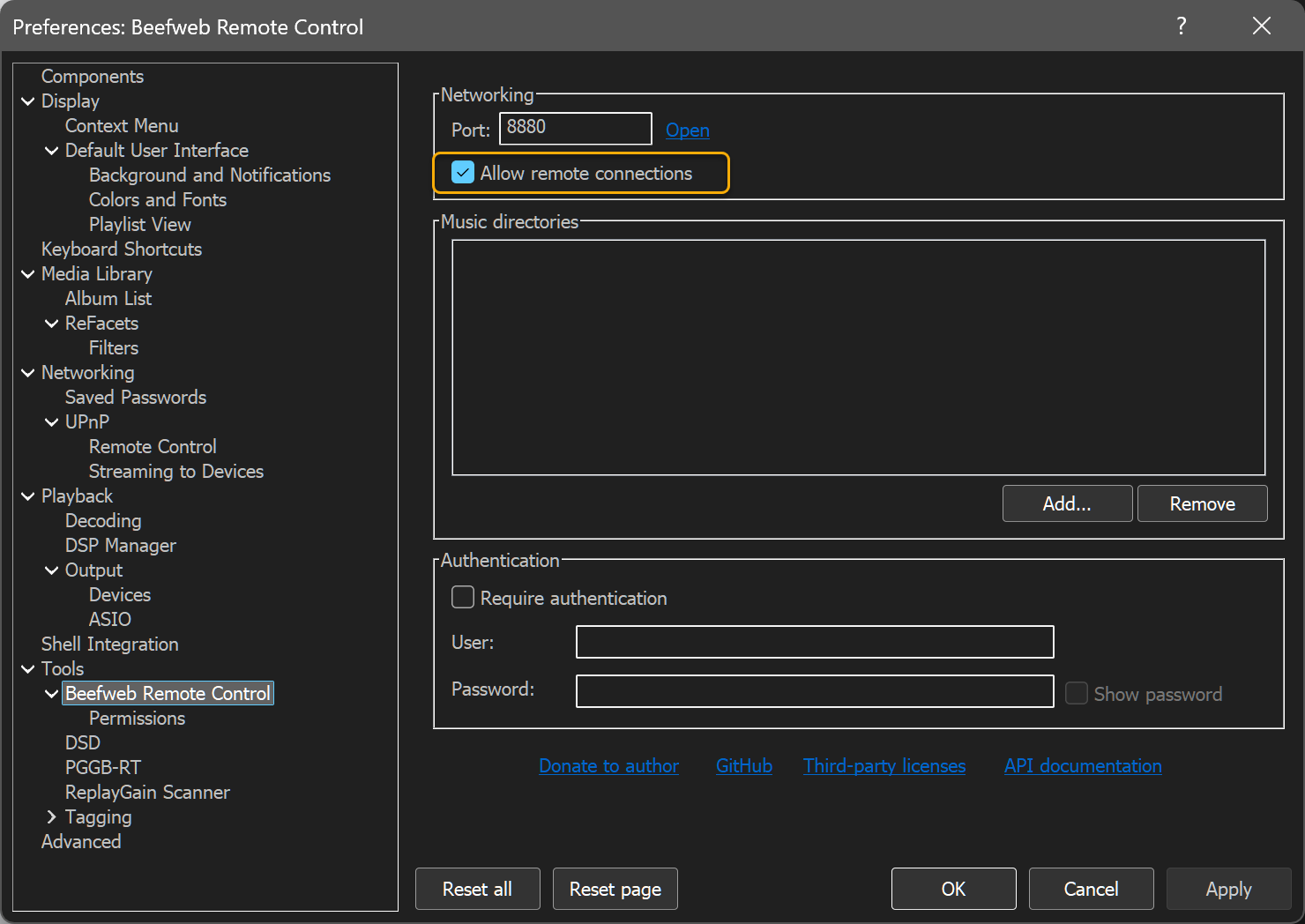
- Open File → Preferences → Tools → Beefweb Remote Control. If foobar2000 runs on another computer, tick Allow remote connections.
- Set foobar2000’s own volume to full and adjust your listening level in PGGB.
foobar2000 / 02
On the same Windows computer.
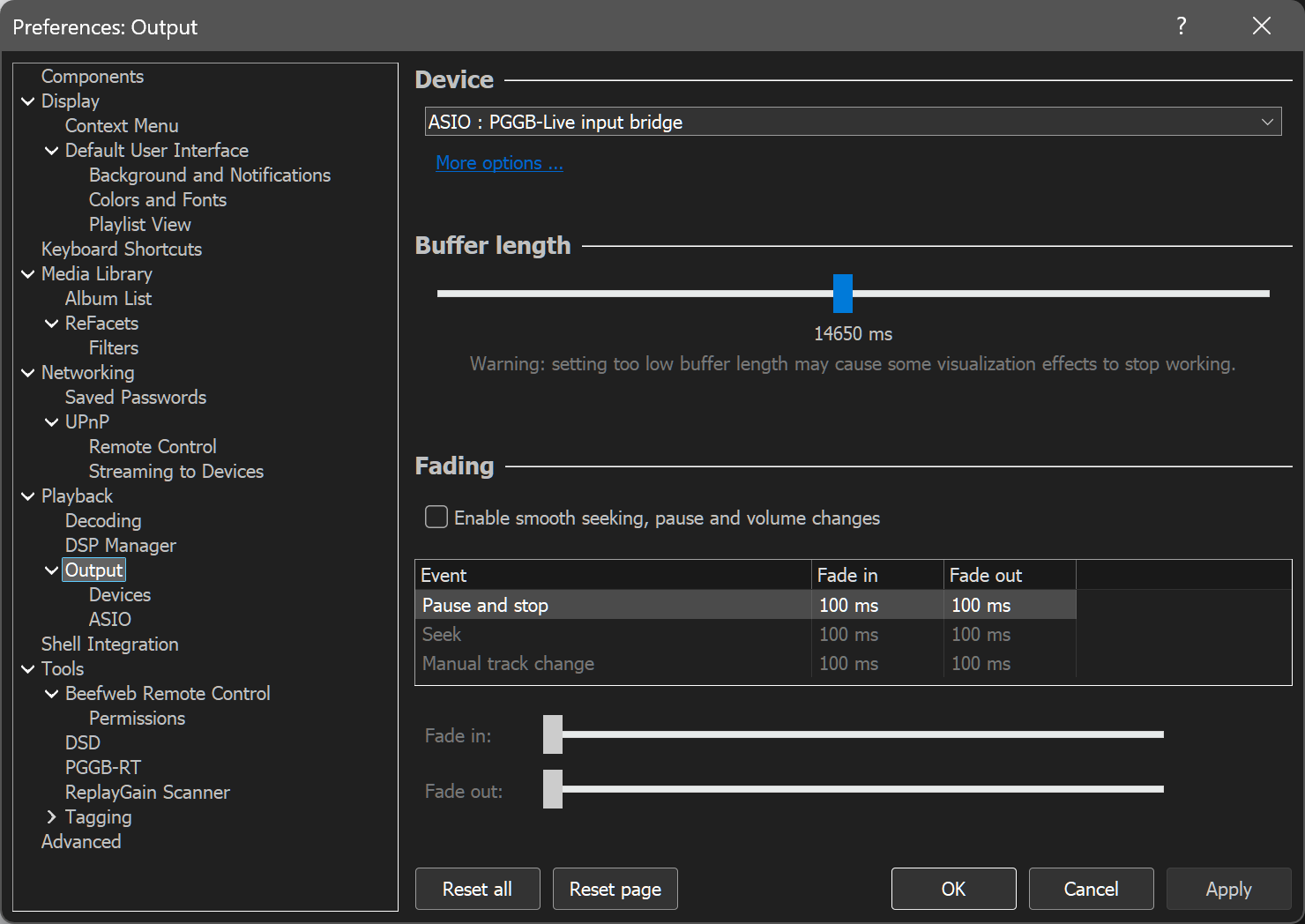
- Open File → Preferences → Playback → Output → Device and select ASIO : PGGB-Live input bridge.
- In PGGB, choose Settings → Live → Source & queue → Device Input.
| Where PGGB runs | PGGB source | foobar2000 output |
|---|---|---|
| Same Windows computer | Device Input | ASIO : PGGB-Live input bridge |
| Windows or Mac over the network | Network Renderer | UPnP : PGGB-Live (<computer name>) |
foobar2000 / network audio
Over your network.
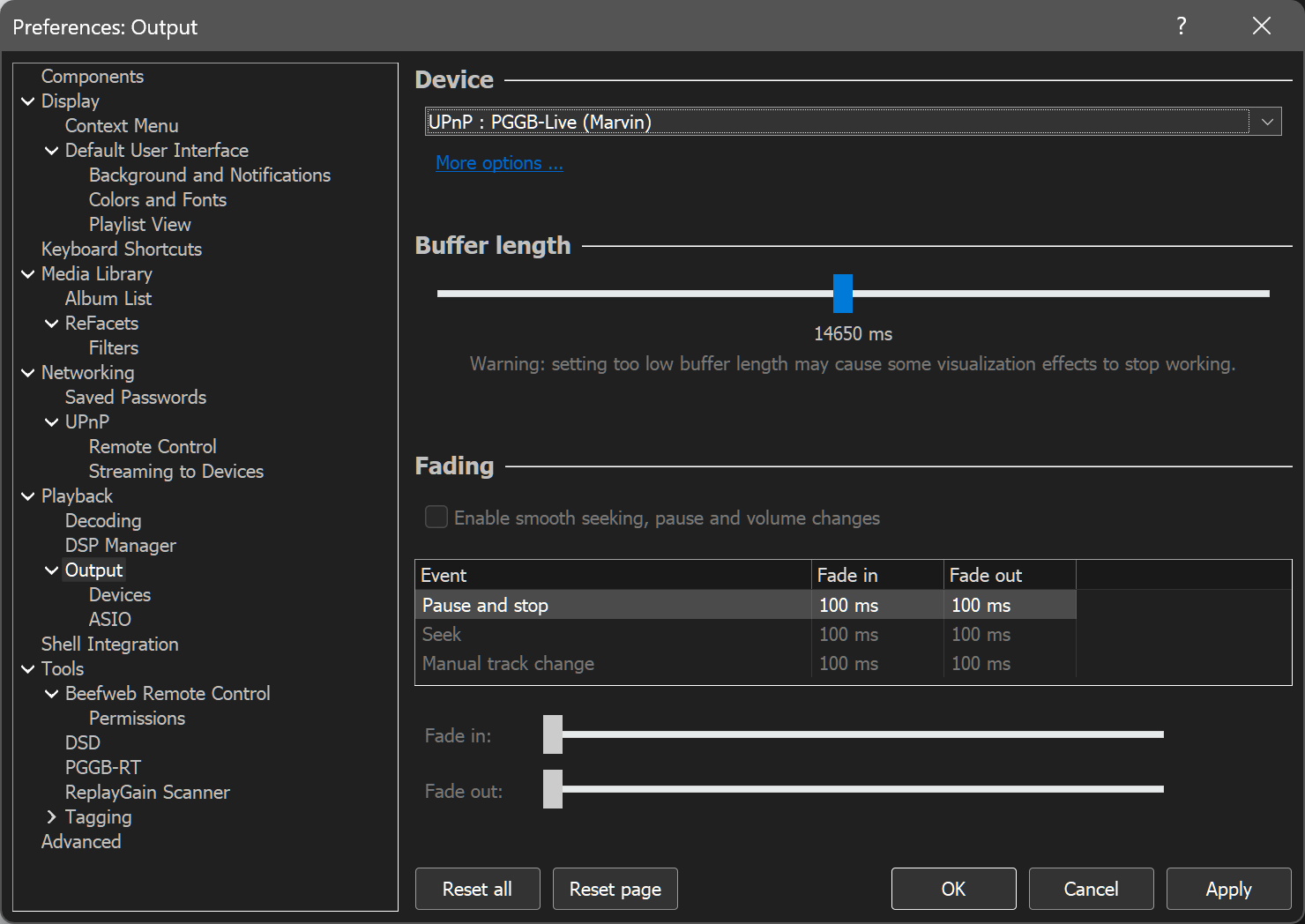
- In foobar2000, choose File → Preferences → Playback → Output → Device → UPnP : PGGB-Live (<computer name>).
- In PGGB, choose Settings → Live → Source & queue → Network Renderer. Start a track in foobar2000 so PGGB can find the computer sending the music.
foobar2000 / 03
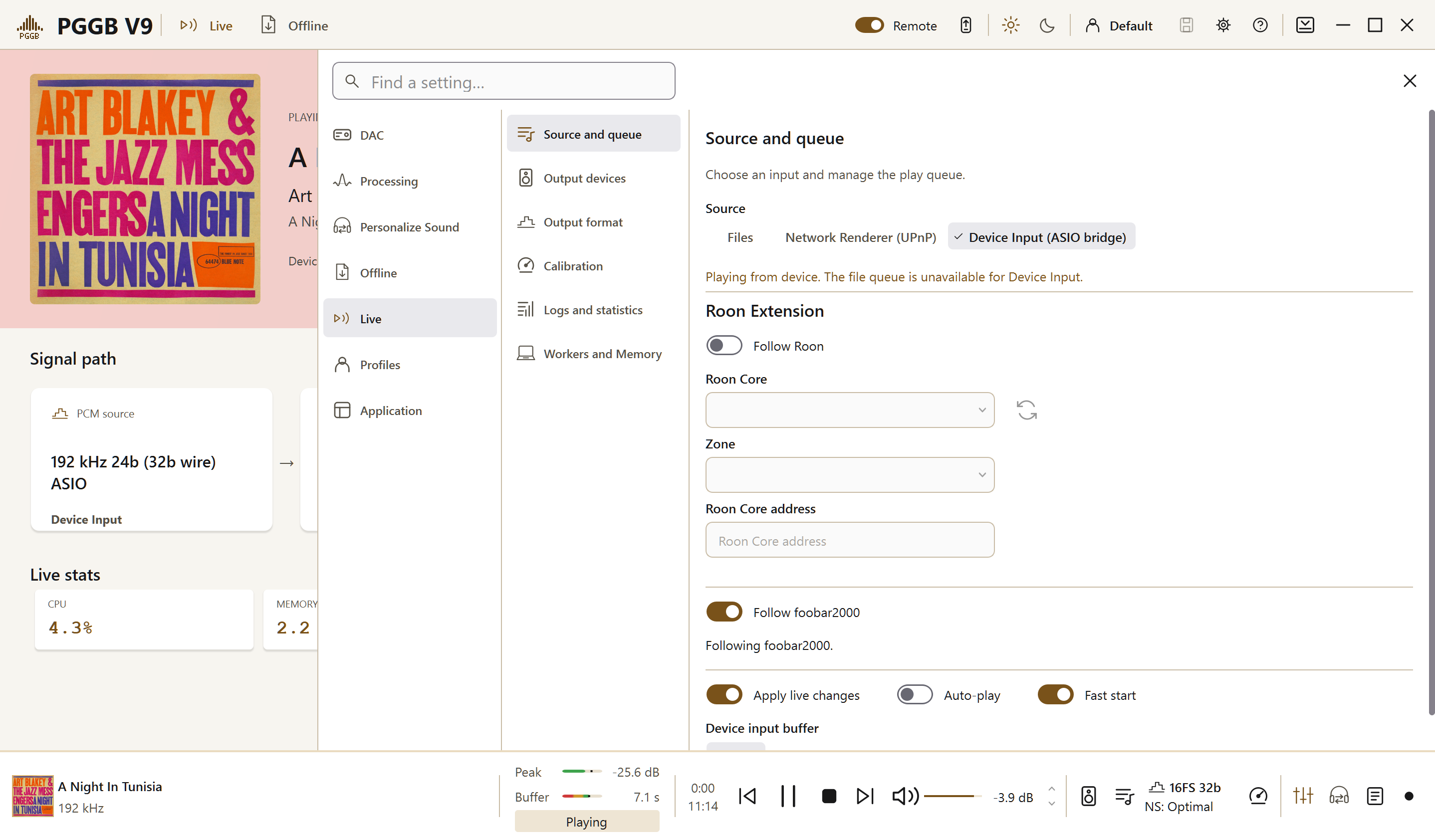
Turn on Follow foobar2000.
- In Settings → Live → Source & queue, turn on Follow foobar2000, below Follow Roon. The two switches turn each other off.
- Shortcut: Live playlist icon → Source & queue. You can also use the Source & queue tile in Now Playing.
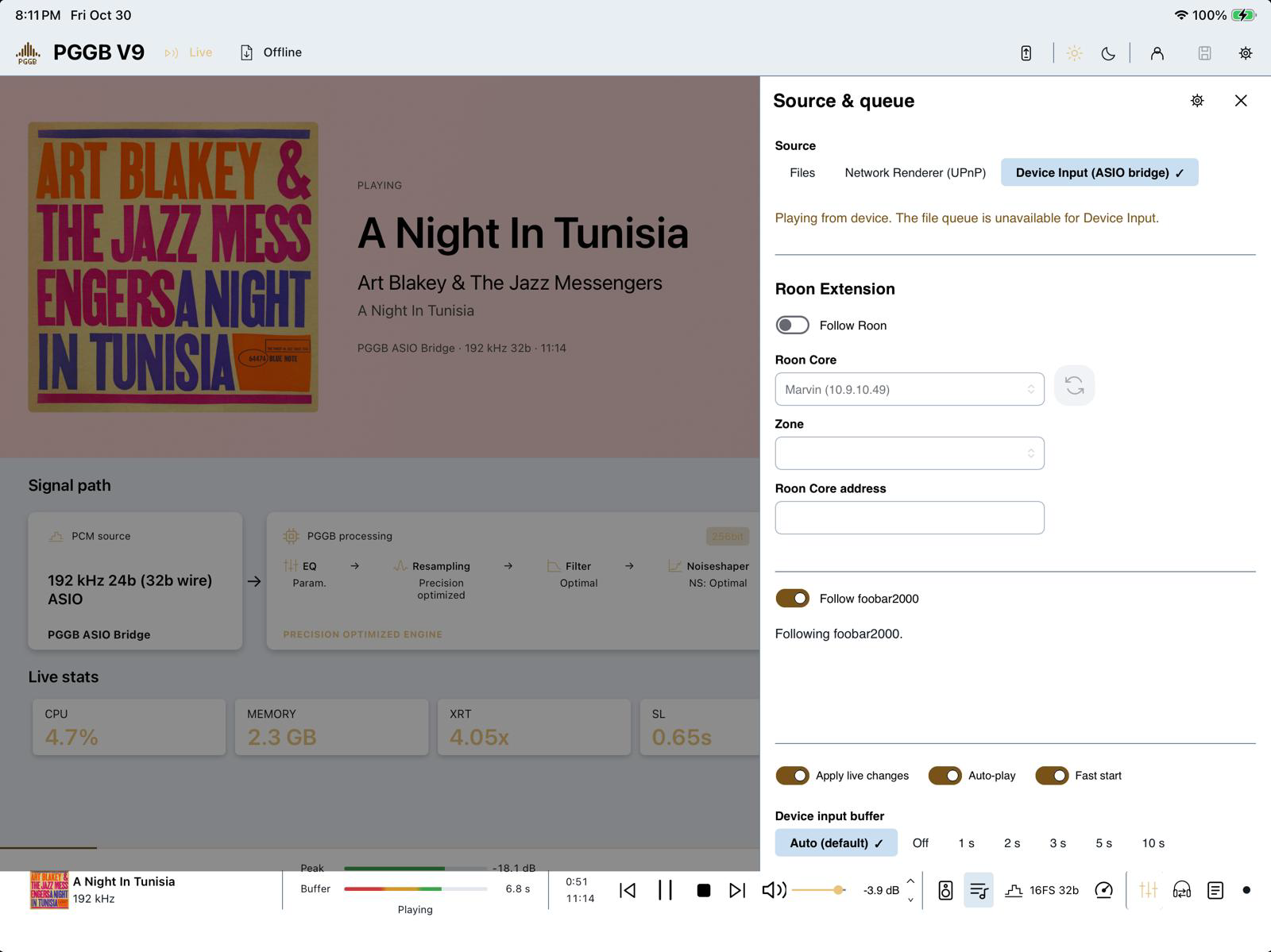
- In Remote, use Settings → Live → Source & queue on your phone or tablet.
Follow from your phone or tablet.
In PGGB-Remote, use Settings → Live → Source & queue. Turn on Follow foobar2000 for the PGGB computer you are controlling.
Track information and cover art appear in Remote too. You can use its playback controls while continuing to choose music in foobar2000.
foobar2000 / 04
Playback and connection help.
Hover over the track bar to see the time before seeking. With Follow foobar2000, seeking works through foobar2000 when the track length is known and Live is playing or paused, but not during calibration.
If the player is not found, check Beefweb Remote Control and remote connections. With Network Renderer, play to PGGB first. If security software blocks Beefweb’s update stream, PGGB checks the player’s state about once a second.
Audio remains buffered while PGGB processes it. Ordinary Device Input without a followed player has no seeking or time under the pointer. When following Roon, seek in Roon itself.